Camera System with GLFW and OpenGL
0. Introduction
Cameras in games or 3D applications are not fundamentally different from real-world cameras.
1. World Coordinate System
The world coordinate system is not a special coordinate system; it is simply the one that all other coordinate systems refer to and align with. It is used to represent positions and directions based on the X, Y, Z axes.
In daily life, we often use front, back, left, right, up to describe the position of other objects relative to ourselves. This is an intuitive and natural model.
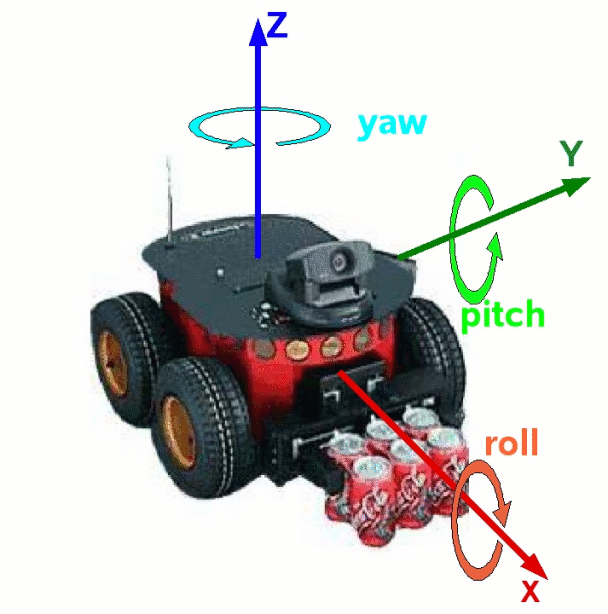
In fields like robotics, aviation, and rocketry, terms such as pitch, yaw, roll are commonly used to describe the orientation of an object.
While people prefer descriptive terms for orientation and position, these must be mathematically bound to the X, Y, Z axes for rigorous computation. However, there is no universal rule that X represents east, Y represents north, and Z points to the sky. Consequently, these bindings differ across domains, as do the rotation orders and the use of left-handed versus right-handed coordinate systems.
Examples:
- Robotics: X forward, Y left, Z up (ROS REP 103)
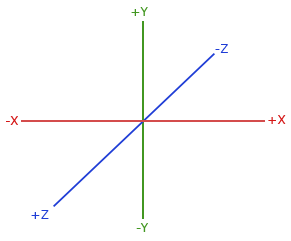
- Graphics (Game Engines): X right, Y up, Z forward (Unity) or Z backward (OpenGL)
2. GLFW Window Coordinate System and Transformation
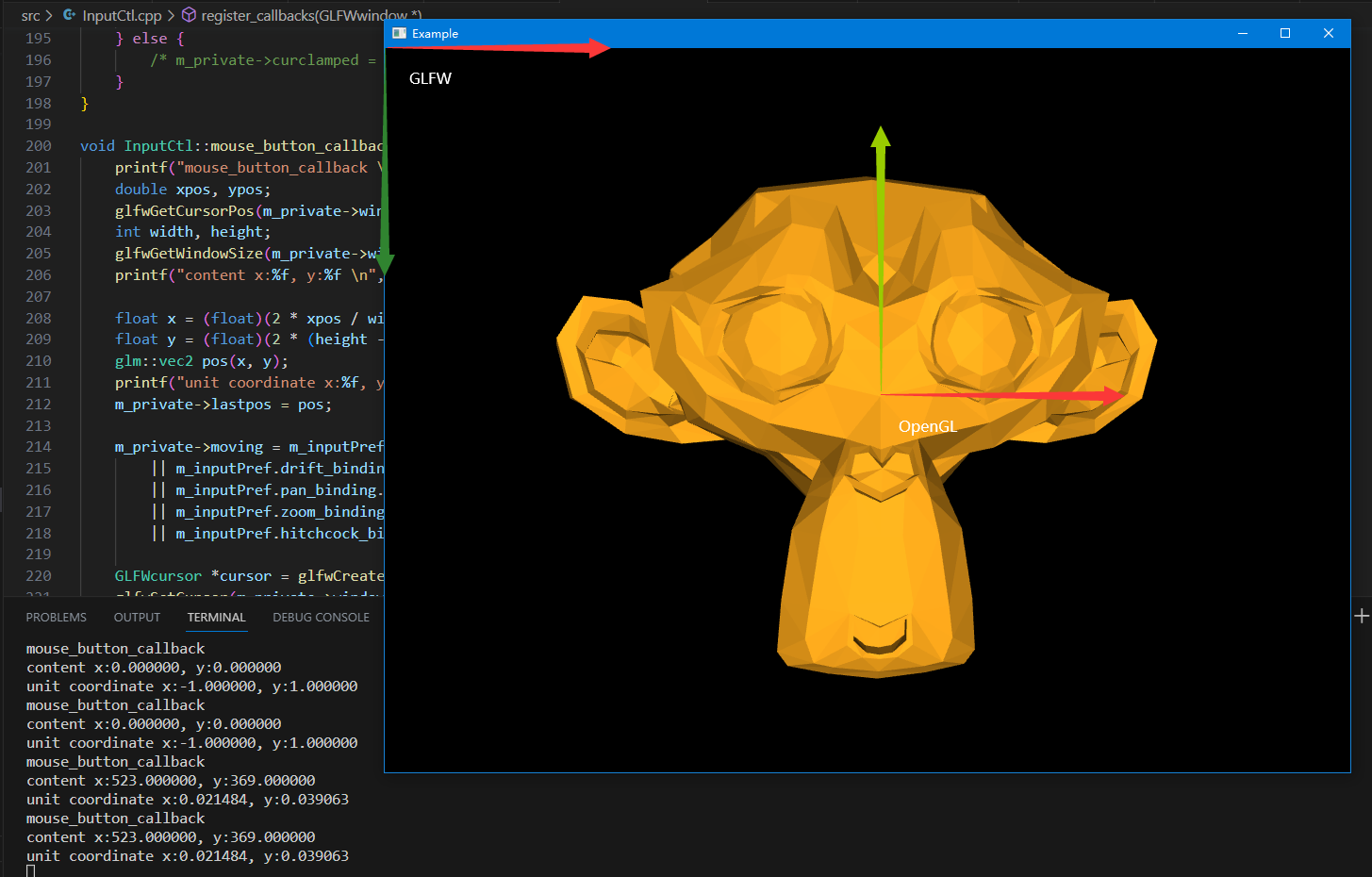
GLFW's window coordinate system has its origin at the top-left corner of the window, with the X-axis increasing to the right and the Y-axis increasing downward.
This can be transformed into OpenGL's screen coordinate system, where the origin is at the window center, X increases to the right, and Y increases upward.
printf("mouse_button_callback \n");
double xpos, ypos;
glfwGetCursorPos(m_private->window, &xpos, &ypos);
int width, height;
glfwGetWindowSize(m_private->window, &width, &height);
printf("content x:%f, y:%f \n", xpos, ypos);

float x = (float)(2 * xpos / width - 1);
float y = (float)(2 * (height - ypos) / height - 1);
glm::vec2 pos(x, y);
printf("unit coordinate x:%f, y:%f \n", x, y);
The callback glfwSetMouseButtonCallback is invoked once on button press and once on release (GLFW documentation).
3. What is a Camera?
In OpenGL, the camera corresponds to the View matrix, wich transforms world-space coordinates into camera space.
To perform this transformation, we need to describe the camera coordinate system within the world coordinate system. This requires four pieces of information: the camera origin and three mutually perpendicular axes.
How ever, we can specify only three: the camera origin, the direction it is looking (front vector), and an up vector. The third axis (right vector) can be computed via a cross product.
OpenGL provides the lookAt() function for this purpose, which takes three parameters:
Parameters
    eye     Position of the camera
    center  Position where the camera is looking at
    up      Normalized up vector, how the camera is oriented. Typically (0, 0, 1)
Thus, to update the camera's position and orientation, we modify three values: the camera position, the look-at target, and the up vector—all defined in world space.
When we see an object moving left and right on the screen, it is actually the camera moving, not the object—this is relativity.
4. Planar Camera Movement (Pan)
Imagine a camera constrained to a fixed plane (e.g., the screen's viewport), able to move left, right, up, and down without rotating (the up vector remains fixed).
This primarily modifies the camera position and look-at target:
/* Code from Peng Yu Bin 《OpenGL Tutor》 */
// translate left, right, up, and down.
void pan(InputCtl::InputPreference const &pref, glm::vec2 delta) {
    delta *= -pref.pan_speed;

    auto front_vector = glm::normalize(lookat - eye);
    auto right_vector = glm::normalize(glm::cross(front_vector, up_vector));
    auto fixed_up_vector = glm::normalize(glm::cross(right_vector, front_vector));

    auto delta3d = delta.x * right_vector + delta.y * fixed_up_vector;

    eye += delta3d;
    lookat += delta3d;
    printf("translate left and right \n");
}

glm::mat4x4 view_matrix() const {
    return glm::lookAt(eye, lookat, up_vector);
}
Due to relativity, when we think we are moving an object left, we are actually moving the camera to the right. Thus, a negative mouse delta (object moving left) implies the camera moving right in world space.
Why do we need fixed_up_vector? As explained in LearnOpenGL's Camera tutorial, the initial up_vector may not strictly point upward relative to the camera. It must be coplanar with the direction vector (cameraPos - cameraTarget) to generate the right axis. The true up vector is then computed as direction × right.
glm::vec3 cameraUp = glm::cross(cameraDirection, cameraRight);
If the initial up_vector is collinear with the direction vector, only two independent pieces of information are provided, and OpenGL cannot correctly generate the view matrix, resulting in a black screen.
glm::vec3 eye = {0, 0, 5};
glm::vec3 lookat = {0, 0, 0};
glm::vec3 up_vector = {0, 0, -5};
glm::lookAt(eye, lookat, up_vector);
5. Camera Orbit (ArcBall)
Orbiting involves moving the camera along a spherical surface while always pointing at the target object. The camera's imaging plane (defined by up_vector and right_vector) is tangent to the sphere.
A critical aspect of orbiting is keeping the camera's horizontal axis (right axis, or the screen's long edge) as level as possible relative to the world. This is because our head remains horizontally oriented while looking at the screen. If the camera's horizontal axis rotates, it creates a disorienting effect, like holding a phone at an angle while recording.
5.1 Keeping the Horizontal Axis Level: Fixed Up Vector
A simple solution is to keep the up_vector constant, e.g., {0, 1, 0}. This ensures the right axis remains horizontal regardless of the view direction. The only degree of freedom is the camera's eye position; lookat remains fixed during orbiting.
By fixing up_vector, we can generate a plane that contains this vector. The camera's front_vector changes only within some plane orthogonal to the right axis, preventing the camera from tilting sideways.
However, a problem occurs when front_vector becomes nearly collinear with up_vector (i.e., looking directly downward or upward). While an exact colinear case is rare due to numerical precision, close proximity causes the right axis to flip rapidly, leading to visual jitter.
void orbit(InputCtl::InputPreference const &pref, glm::vec2 delta, bool isDrift) {
    if (isDrift) {
        delta *= -pref.drift_speed;
        delta *= std::atan(film_height / (2 * focal_len));
    } else {
        delta *= pref.orbit_speed;
    }

    auto angle_X_inc = delta.x;
    auto angle_Y_inc = delta.y;

    auto rotation_pivot = isDrift ? eye : lookat;
    auto front_vector = glm::normalize(lookat - eye);
    auto right_vector = glm::normalize(glm::cross(front_vector, up_vector));
    auto new_up_vector = glm::normalize(glm::cross(right_vector, front_vector));

    // Rotation around horizontal mouse movement
    glm::mat4x4 rotation_matrixX = glm::rotate(glm::mat4x4(1), -angle_X_inc, new_up_vector);

    // Rotation around vertical mouse movement
    glm::mat4x4 rotation_matrixY = glm::rotate(glm::mat4x4(1), angle_Y_inc, right_vector);

    auto transformation = glm::translate(glm::mat4x4(1), rotation_pivot)
        * rotation_matrixY * rotation_matrixX
        * glm::translate(glm::mat4x4(1), -rotation_pivot);

    eye = glm::vec3(transformation * glm::vec4(eye, 1));
    lookat = glm::vec3(transformation * glm::vec4(lookat, 1));
}
5.1.1 Log Example of Jumping at Top View
With #include <glm/gtx/string_cast.hpp>, GLM can output vector and matrix information.
front_vector vec3(-0.000316, -1.000000, -0.000136)
right_vector vec3(0.395702, 0.000000, -0.918379)
new_up_vector vec3(-0.918379, 0.000344, -0.395702)
angle_Y_inc: -0.00260419
rotation_matrixY: mat4x4((0.999997, 0.002392, -0.000001, 0.000000), (-0.002392, 0.999997, -0.001030, 0.000000), (-0.000001, 0.001030, 0.999999, 0.000000), (0.000000, 0.000000,
0.000000, 1.000000))
transformation: mat4x4((0.999997, 0.002392, -0.000001, 0.000000), (-0.002392, 0.999997, -0.001030, 0.000000), (-0.000001, 0.001030, 0.999999, 0.000000), (0.000000, 0.000000, 0.000000, 1.000000))
Eye: vec3(-0.010380, 4.999970, -0.004472)

front_vector vec3(0.002076, -0.999998, 0.000894)
right_vector vec3(-0.395702, 0.000000, 0.918379)
new_up_vector vec3(0.918377, 0.002260, 0.395701)
rotation_matrixY: mat4x4((0.999997, -0.002392, -0.000001, 0.000000), (0.002392, 0.999997, 0.001030, 0.000000), (-0.000001, -0.001030, 0.999999, 0.000000), (0.000000, 0.000000,
0.000000, 1.000000))
transformation: mat4x4((0.999997, -0.002392, -0.000001, 0.000000), (0.002392, 0.999997, 0.001030, 0.000000), (-0.000001, -0.001030, 0.999999, 0.000000), (0.000000, 0.000000, 0.000000, 1.000000))
Eye: vec3(0.001578, 4.999983, 0.000680)
5.2 Unfixed Up Vector Causing Horizontal Axis Rotation
If the up vector is not fixed but updated each frame, it can point arbitrarily. This freedom causes the horizontal axis to tilt, which is undesirable. A correction is needed to keep the horizontal axis level.
void orbit(InputCtl::InputPreference const &pref, glm::vec2 delta, bool isDrift) {
    if (isDrift) {
        delta *= -pref.drift_speed;
        delta *= std::atan(film_height / (2 * focal_len));
    } else {
        delta *= pref.orbit_speed;
    }

    auto angle_X_inc = delta.x;
    auto angle_Y_inc = delta.y;

    auto rotation_pivot = isDrift ? eye : lookat;
    auto front_vector = glm::normalize(lookat - eye);
    auto right_vector = glm::normalize(glm::cross(front_vector, up_vector));
    up_vector = glm::normalize(glm::cross(right_vector, front_vector));

    // Determine sign of angles by simulating with your hand as a camera.
    glm::mat4x4 rotation_matrixX = glm::rotate(glm::mat4x4(1), -angle_X_inc, up_vector);
    glm::mat4x4 rotation_matrixY = glm::rotate(glm::mat4x4(1), angle_Y_inc, right_vector);

    auto transformation = glm::translate(glm::mat4x4(1), rotation_pivot)
        * rotation_matrixY * rotation_matrixX
        * glm::translate(glm::mat4x4(1), -rotation_pivot);

    eye = glm::vec3(transformation * glm::vec4(eye, 1));
    lookat = glm::vec3(transformation * glm::vec4(lookat, 1));
}
A correction step (commented out in the code) would be necessary to undo the horizontal drift by rotating around the front vector.
X. References
- 《Modern OpenGL 03 By Peng Yu Bin》
