HarmonyOS Stage Model: Card Data Interaction
Through timed refresh and fixed-point refresh, developers can control the refresh frequency and timing of cards based on actual needs, thereby providing a better user experience.
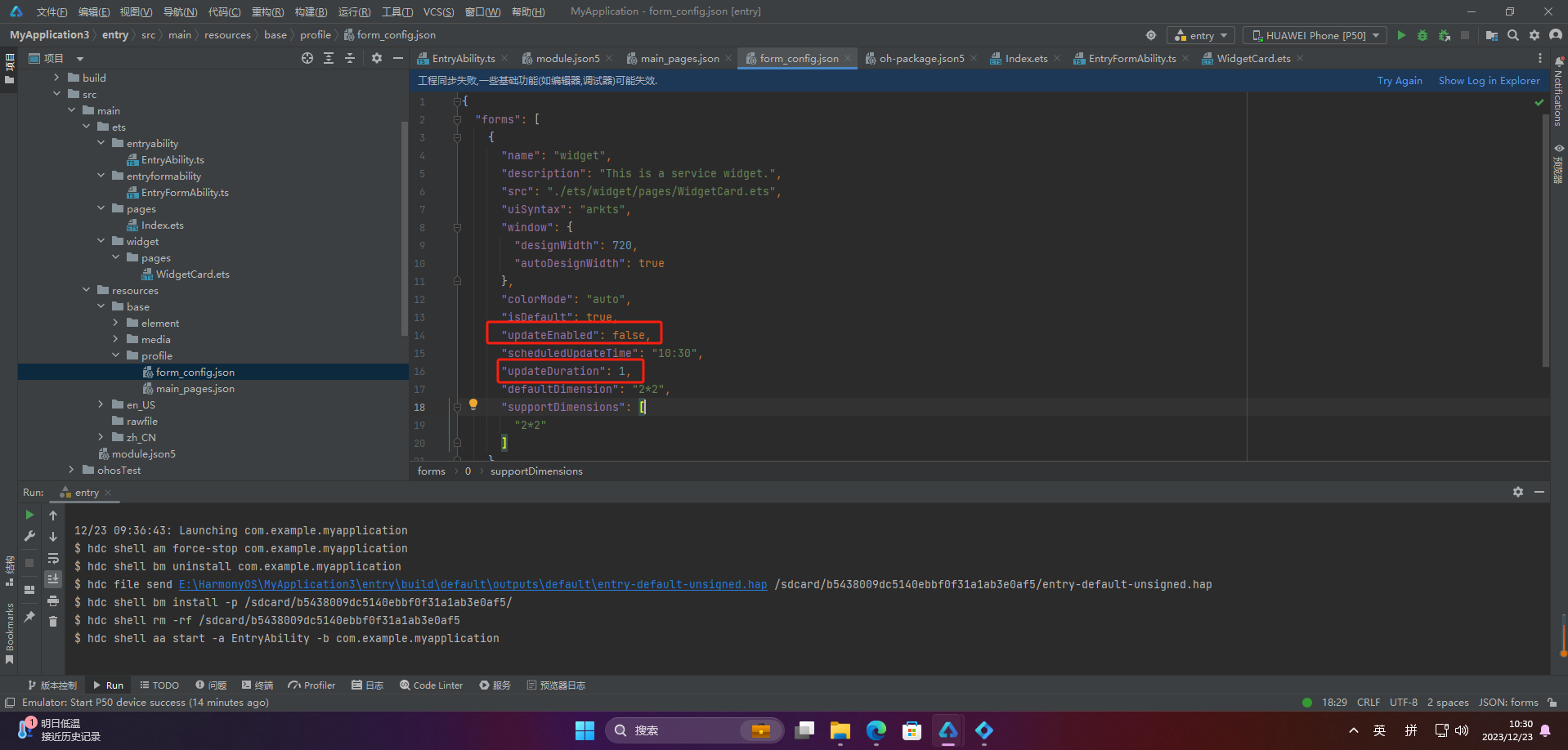
2.1 Timed Refresh
{
  "forms": [
    {
      "name": "widget",
      "description": "This is a service widget.",
      "src": "./ets/widget/pages/WidgetCard.ets",
      "uiSyntax": "arkts",
      "window": {
        "designWidth": 720,
        "autoDesignWidth": true
      },
      "colorMode": "auto",
      "isDefault": true,
      "updateEnabled": true,
      "scheduledUpdateTime": "10:30",
      "updateDuration": 2,
      "defaultDimension": "2*2",
      "supportDimensions": ["2*2"]
    }
  ]
}
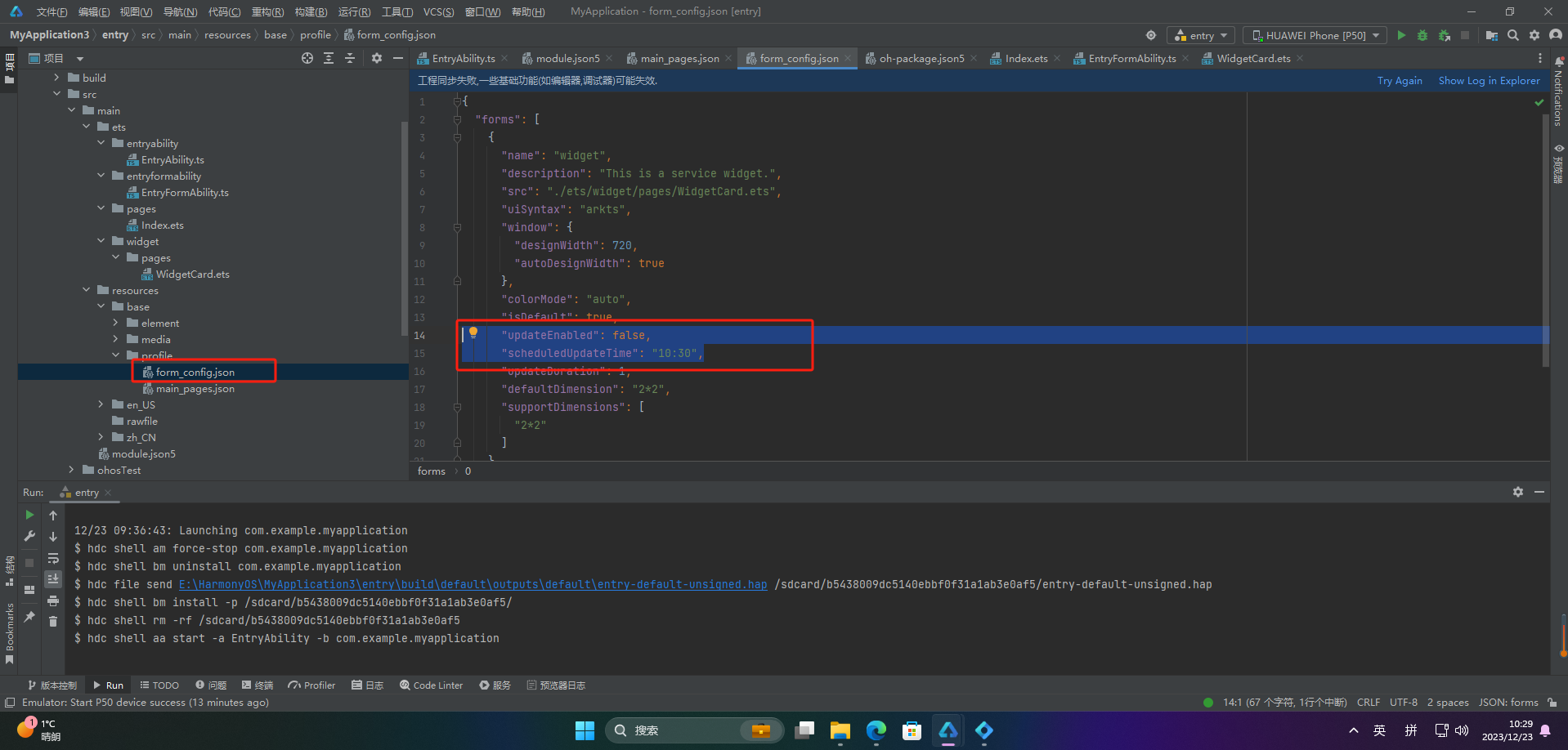
2.2 Fixed-Point Refresh
{
  "forms": [
    {
      "name": "widget",
      "description": "This is a service widget.",
      "src": "./ets/widget/pages/WidgetCard.ets",
      "uiSyntax": "arkts",
      "window": {
        "designWidth": 720,
        "autoDesignWidth": true
      },
      "colorMode": "auto",
      "isDefault": true,
      "updateEnabled": true,
      "scheduledUpdateTime": "10:30",
      "updateDuration": 0,
      "defaultDimension": "2*2",
      "supportDimensions": ["2*2"]
    }
  ]
}
2.3 Next Refresh
import formProvider from '@ohos.app.form.formProvider';

let formId = '123456789';
try {
  formProvider.setFormNextRefreshTime(formId, 5, (err, data) => {
    if (err) {
      console.error(`Failed to setFormNextRefreshTime. Code: ${err.code}, message: ${err.message}`);
      return;
    } else {
      console.info('Succeeded in setFormNextRefreshTimeing.');
    }
  });
} catch (err) {
  console.error(`Failed to setFormNextRefreshTime. Code: ${err.code}, message: ${err.message}`);
}
For specific refresh methods, refer to the previous article.
3. Refreshing Local and Network Images
In HarmonyOS card development, images can be displayed by requesting local images and network images.
Requesting local images can use HarmonyOS's resource manager to obtain local image resources and display them on the card.
First, enable the following permission:
ohos.permission.INTERNET
3.1 Sending Local Images
import formBindingData from '@ohos.app.form.formBindingData';
import formProvider from '@ohos.app.form.formProvider';
import FormExtensionAbility from '@ohos.app.form.FormExtensionAbility';
import request from '@ohos.request';
import fs from '@ohos.file.fs';

export default class EntryFormAbility extends FormExtensionAbility {
  // When adding a card, open a local image and pass the image content to the card page
  onAddForm(want) {
    let tempDir = this.context.getApplicationContext().tempDir;
    let file;
    try {
      file = fs.openSync(tempDir + '/' + 'head.PNG');
    } catch (e) {
      console.error(`openSync failed: ${JSON.stringify(e)}`);
    }
    let formData = {
      'text': 'Image: Bear',
      'imgName': 'imgBear',
      'formImages': {
        'imgBear': file.fd
      },
      'loaded': true
    };
    return formBindingData.createFormBindingData(formData);
  }
}
3.2 Sending Network Images
import formBindingData from '@ohos.app.form.formBindingData';
import formProvider from '@ohos.app.form.formProvider';
import FormExtensionAbility from '@ohos.app.form.FormExtensionAbility';
import request from '@ohos.request';
import fs from '@ohos.file.fs';

export default class EntryFormAbility extends FormExtensionAbility {
  onFormEvent(formId, message) {
    let formInfo = formBindingData.createFormBindingData({
      'text': 'Refreshing...'
    });
    formProvider.updateForm(formId, formInfo);
    // Note: FormExtensionAbility is only available for 5 seconds in the background when triggered
    // It is recommended to download small files that can be downloaded quickly
    let netFile = 'https://xxxx/xxxx.png';
    let tempDir = this.context.getApplicationContext().tempDir;
    let tmpFile = tempDir + '/file' + Date.now();
    request.downloadFile(this.context, {
      url: netFile, filePath: tmpFile
    }).then((task) => {
      task.on('complete', function callback() {
        console.info('ArkTSCard download complete:' + tmpFile);
        let file;
        try {
          file = fs.openSync(tmpFile);
        } catch (e) {
          console.error(`openSync failed: ${JSON.stringify(e)}`);
        }
        let formData = {
          'text': 'Image: Https',
          'imgName': 'imgHttps',
          'formImages': {
            'imgHttps': file.fd
          },
          'loaded': true
        };
        let formInfo = formBindingData.createFormBindingData(formData);
        formProvider.updateForm(formId, formInfo).then((data) => {
          console.info('FormAbility updateForm success.' + JSON.stringify(data));
        }).catch((error) => {
          console.error('FormAbility updateForm failed: ' + JSON.stringify(error));
        });
      });
      task.on('fail', function callBack(err) {
        console.info('ArkTSCard download task failed. Cause:' + err);
        let formInfo = formBindingData.createFormBindingData({
          'text': 'Refresh failed'
        });
        formProvider.updateForm(formId, formInfo);
      });
    }).catch((err) => {
      console.error('Failed to request the download. Cause: ' + JSON.stringify(err));
    });
  }
}
3.3 Card UI Recieving Data
let storage = new LocalStorage();

@Entry(storage)
@Component
struct WidgetCard {
  @LocalStorageProp('text') text: string = 'Loading...';
  @LocalStorageProp('loaded') loaded: boolean = false;
  @LocalStorageProp('imgName') imgName: string = 'name';

  build() {
    Column() {
      Text(this.text)
        .fontSize('12vp')
        .textAlign(TextAlign.Center)
        .width('100%')
        .height('15%');

      Row() {
        if (this.loaded) {
          Image('memory://' + this.imgName)
            .width('50%')
            .height('50%')
            .margin('5%');
        } else {
          Image('common/start.PNG')
            .width('50%')
            .height('50%')
            .margin('5%');
        }
      }.alignItems(VerticalAlign.Center)
      .justifyContent(FlexAlign.Center);

      Button('Refresh')
        .height('15%')
        .onClick(() => {
          postCardAction(this, {
            'action': 'message',
            'params': {
              'info': 'refreshImage'
            }
          });
        });
    }
    .width('100%').height('100%')
    .alignItems(HorizontalAlign.Center)
    .padding('5%');
  }
}
4. Refreshing Different Content Based on Card State
We can add two desktop cards: one displaying weather in Hangzhou, and another displaying weather in Beijing. These cards can trigger a timed refresh every morning at 7:00. The card needs to know its current configuration (Hangzhou or Beijing) and refresh accordingly. The following example demonstrates how to dynamically select content to refresh based on the card's state.
- Configure timed refresh:
{
  "forms": [
    {
      "name": "widget",
      "description": "This is a service widget.",
      "src": "./ets/widget/pages/WidgetCard.ets",
      "uiSyntax": "arkts",
      "window": {
        "designWidth": 720,
        "autoDesignWidth": true
      },
      "colorMode": "auto",
      "isDefault": true,
      "updateEnabled": true,
      "scheduledUpdateTime": "07:00",
      "updateDuration": 0,
      "defaultDimension": "2*2",
      "supportDimensions": ["2*2"]
    }
  ]
}
- Select state:
let storage = new LocalStorage();
@Entry(storage)
@Component
struct WidgetCard {
  @LocalStorageProp('textA') textA: string = 'Pending refresh...';
  @LocalStorageProp('textB') textB: string = 'Pending refresh...';
  @State selectA: boolean = false;
  @State selectB: boolean = false;

  build() {
    Column() {
      Row() {
        Checkbox({ name: 'checkbox1', group: 'checkboxGroup' })
          .select(false)
          .onChange((value: boolean) => {
            this.selectA = value;
            postCardAction(this, {
              'action': 'message',
              'params': {
                'selectA': JSON.stringify(value)
              }
            });
          });
        Text('State A');
      }

      Row() {
        Checkbox({ name: 'checkbox2', group: 'checkboxGroup' })
          .select(false)
          .onChange((value: boolean) => {
            this.selectB = value;
            postCardAction(this, {
              'action': 'message',
              'params': {
                'selectB': JSON.stringify(value)
              }
            });
          });
        Text('State B');
      }

      Row() {
        Text('State A: ');
        Text(this.textA);
      }

      Row() {
        Text('State B: ');
        Text(this.textB);
      }
    }.padding('10%');
  }
}
- Refresh content based on state (continuing from the previous code):
import formInfo from '@ohos.app.form.formInfo';
import formProvider from '@ohos.app.form.formProvider';
import formBindingData from '@ohos.app.form.formBindingData';
import FormExtensionAbility from '@ohos.app.form.FormExtensionAbility';
import dataStorage from '@ohos.data.storage';

export default class EntryFormAbility extends FormExtensionAbility {
  onAddForm(want) {
    let formId = want.parameters[formInfo.FormParam.IDENTITY_KEY];
    let isTempCard: boolean = want.parameters[formInfo.FormParam.TEMPORARY_KEY];
    if (isTempCard === false) {
      console.info('Not temp card, init db for:' + formId);
      // Persistence logic here
    }
  }
}
