Resolving MySQL Container Startup Failure: Failed to Create Socket for IPv4 (errno 13)
Analysis
On an Ubuntu 20 server, a MySQL container based on Docker had been running stably. However, after installing Apache2 and MySQL directly via apt on Linux, restarting the MySQL container failed.
When encountering a problem, first check the container's error logs. Execute the log view command: docker logs -f -t --tail 10 mysql01
Log content:
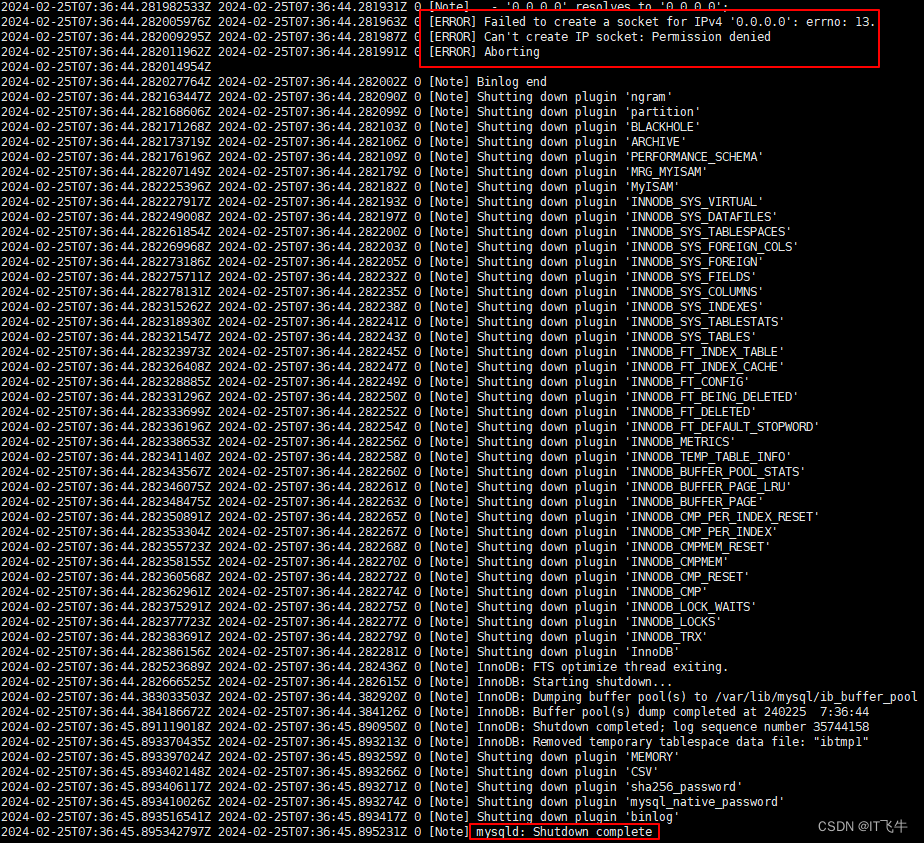
As seen, the container reported an error at creation. After searching online, the cause is often attributed to: IP address or port being occupied.
Presumably, the previously installed Apache2 or MySQL on Linux caused the network port to be occupied, so stopping these services should resolve the issue.
1. Stopping Apache2 and MySQL on Linux
1.1 Stop the services
sudo systemctl stop apache2
sudo systemctl stop mysql

# Or if using an older version of Ubuntu, you might use the service command:
# sudo service mysql stop
# sudo service apache2 stop
After this, restart the MySQL container in Docker:
docker start mysql01
However, the container still fails with the same error. Check the logs again.
1.2 Remove the packages
If stopping services does not help, completely remove the apt packages:
# 1. List MySQL-related packages
apt list --installed | grep mysql
# 2. Remove all MySQL packages
apt remove --purge mysql-server mysql-client mysql-common

# 3. List Apache2-related packages
apt list --installed | grep apache2
# 4. Remove all Apache2 packages
apt remove --purge apache2-bin apache2-data apache2-utils
After removal, verify no remnants:
apt list --installed | grep mysql
apt list --installed | grep apache2

1.3 Start the MySQL container
After steps 1 and 2, start the MySQL container again:
docker start mysql01  # mysql01 is container name; can use container ID
docker logs -f -t --tail 10 mysql01  # view logs
The logs show normal startup:

2. Stopping Apache2 and MySQL on Windows
Open Services, find the MySQL service that occupies the port, and stop it.

Then start the desired MySQL service.

