API Automated Testing with Postman and Newman
Background
Most developers and testers are familiar with Postmann. It's convenient to write and save test cases using Postman. However, Postman is a GUI tool, making it relatively difficult to automate testing directly. Fortunately, Postman provides a command-line tool called Newman, which allows us to combine Postman with Newman to achieve API automated testing.
Terminology
1. Collection
A Collection is a group of saved requests. Every request you send in Postman appears under the "History" tab in the sidebar. When the number of requests is small, reusing requests from history is convenient. As the number grows, finding a specific request in history becomes time-consuming. You can save all requests as a Collection for easy access.
2. Environment
An Environment is a set of variables you can use in Postman requests. You can create different environment files (e.g., dev, test, prod) containing relevant variables to test APIs against different environments.
Usage Guide
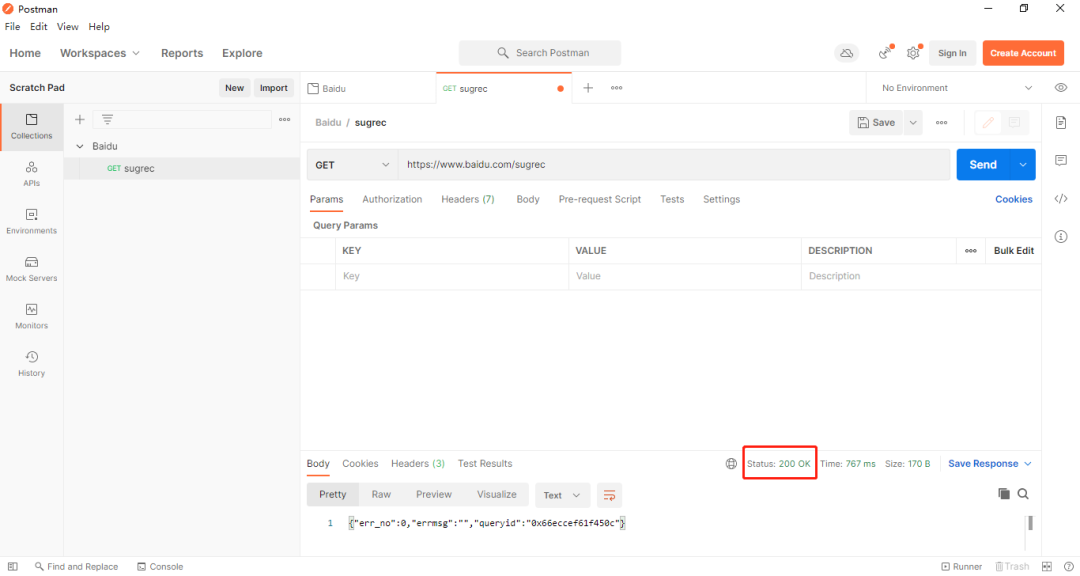
We'll use the API https://www.baidu.com/sugrec as an example.
1. Create a Collection
Create a new collection:
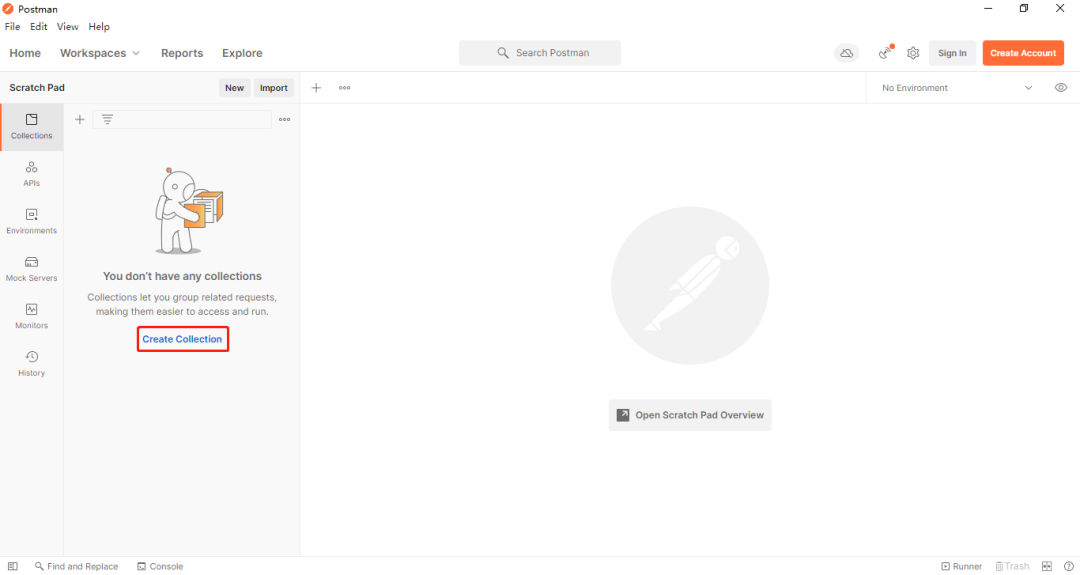
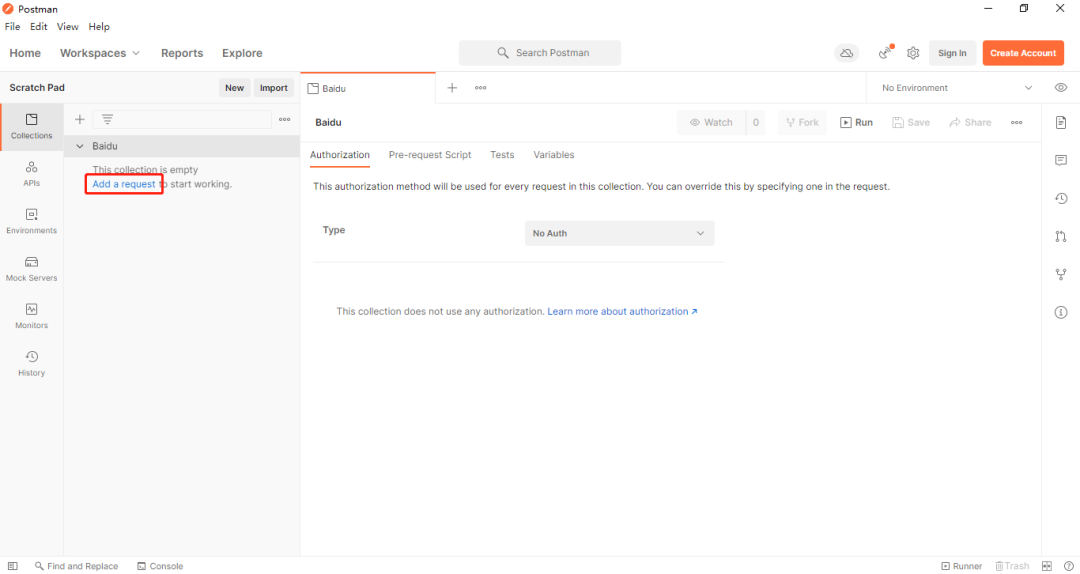
Add a new request:
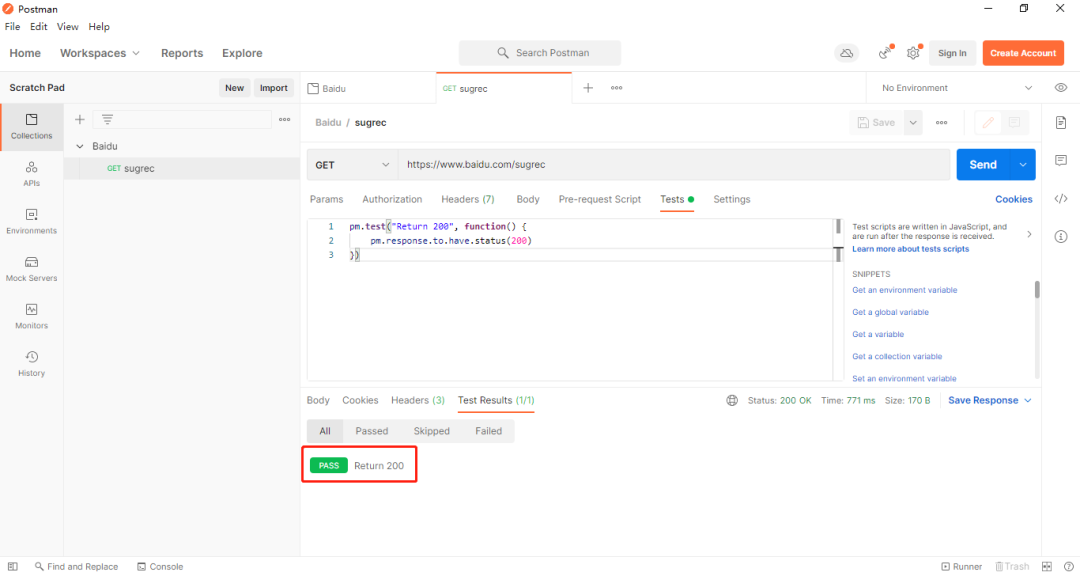
Test the request; expect status code 200:
Write a test assertion and verify:
pm.test("Return 200", function() {
    pm.response.to.have.status(200)
});
2. Create an Environment
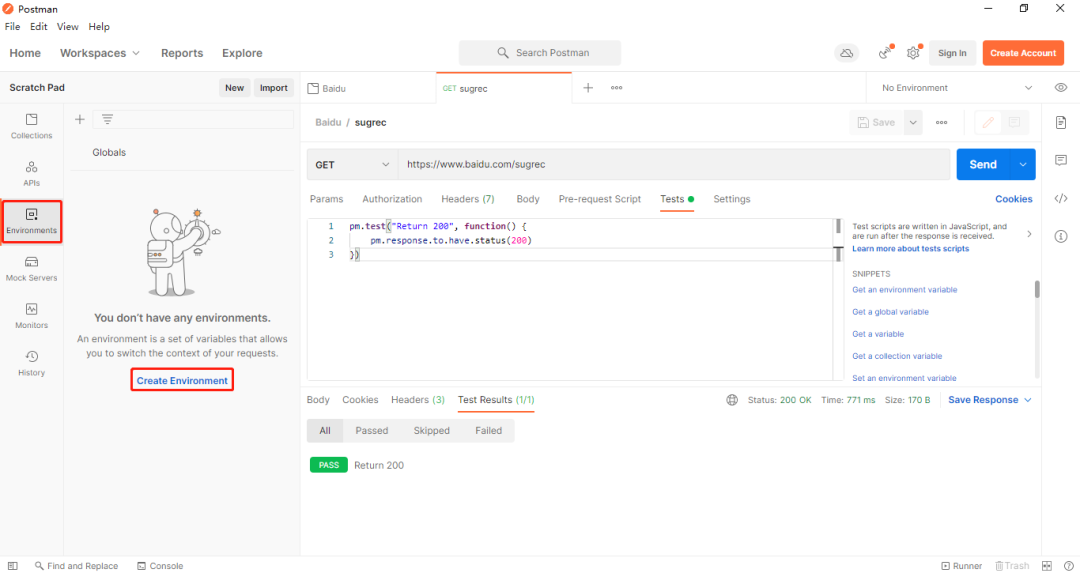
Create a new environment:
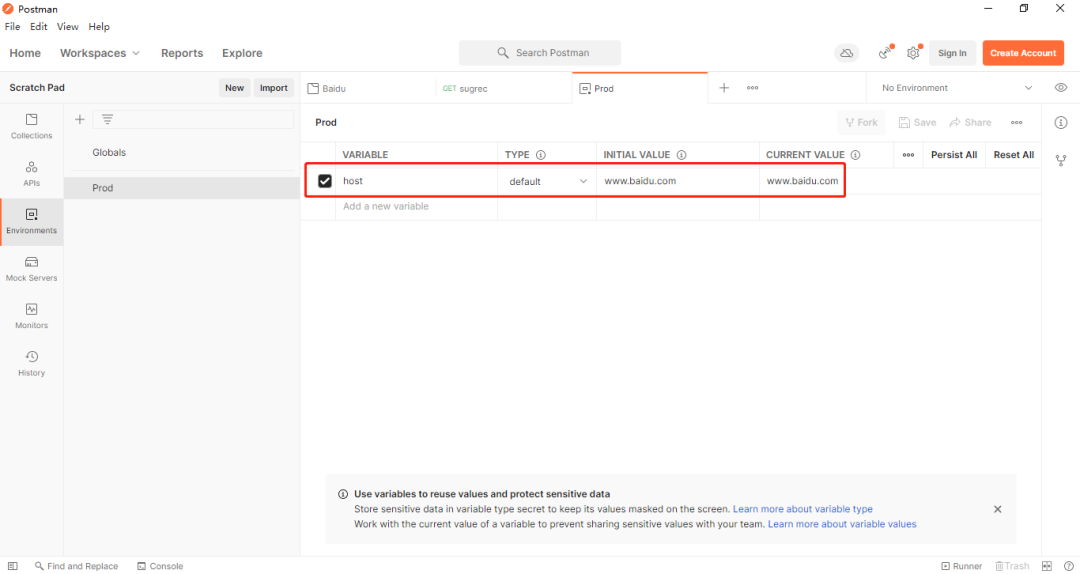
Add variable host:
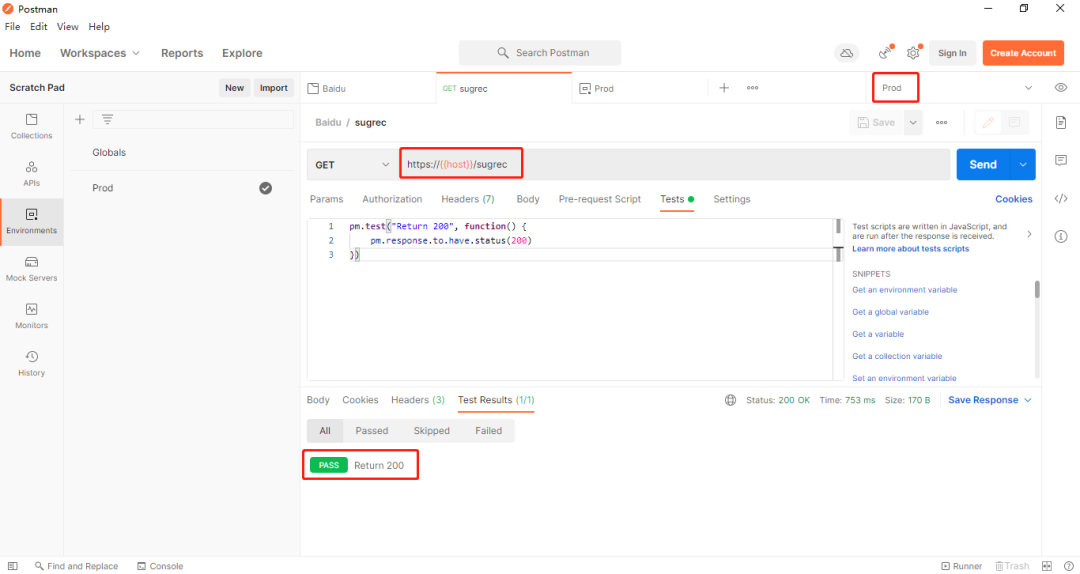
Use the variable in the request and test:
3. Export Collection and Environment
Export collection as collection.json:
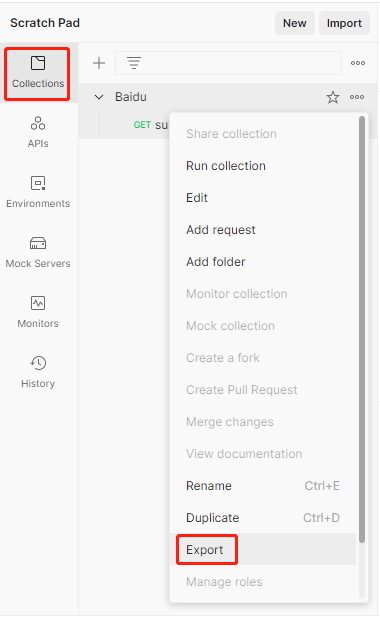
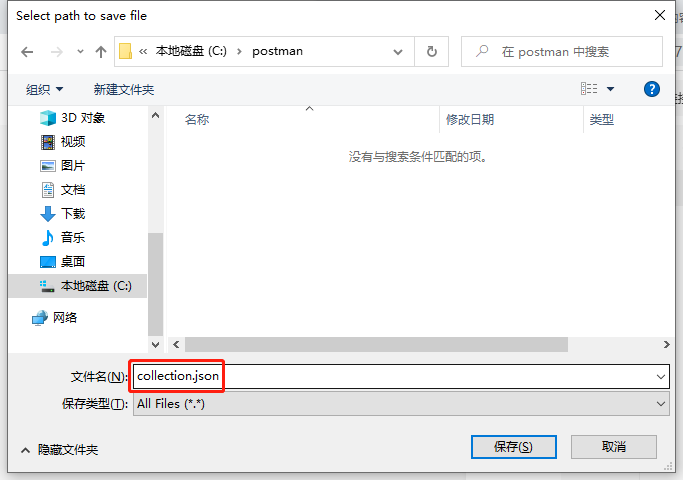
Export environment as environment.json:
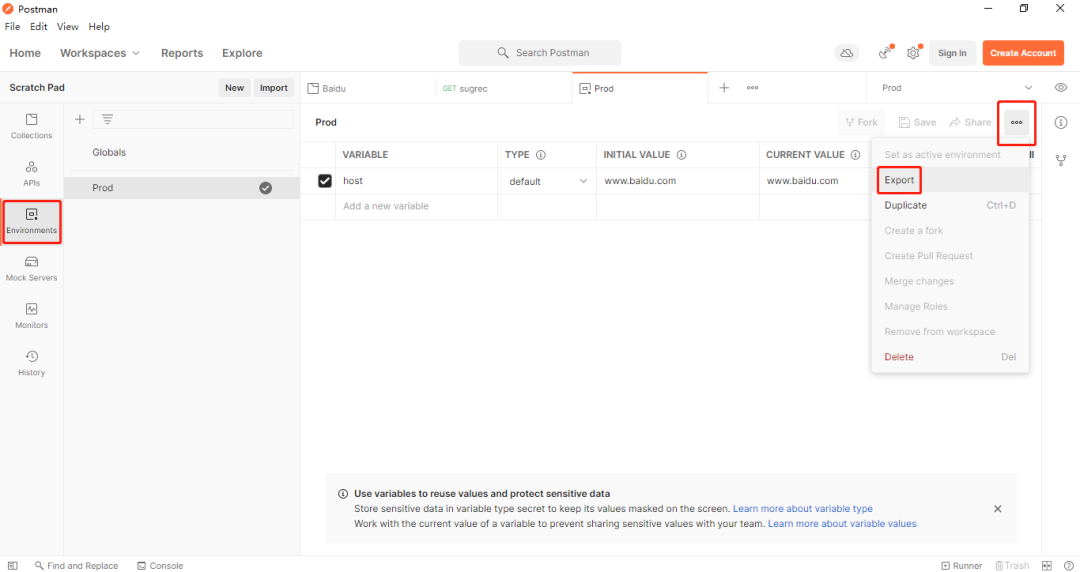
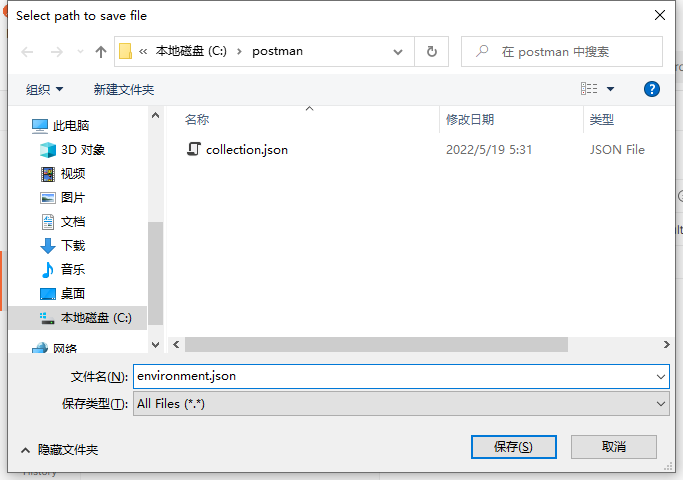
Run API Tests
With collection.json and environment.json exported, you can run the test using a single Docker command:
docker run --rm -i -v /root/postman:/etc/newman \
    --entrypoint sh postman/newman:alpine -c \
    'npm i -g newman-reporter-html; \
    newman run collection.json \
    --suppress-exit-code 1 \
    --color off \
    --reporters cli,html \
    --reporter-html-export api_report.html \
    --environment=environment.json'
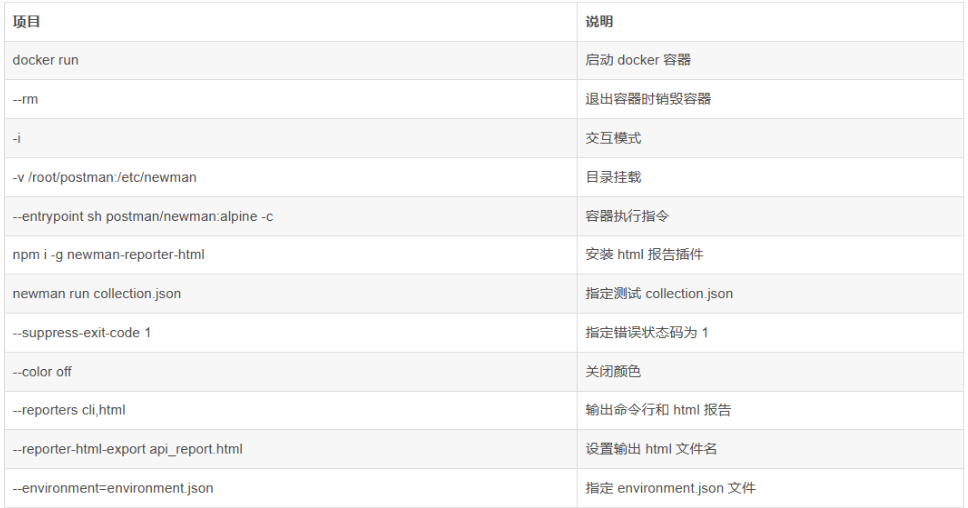
Comand breakdown:
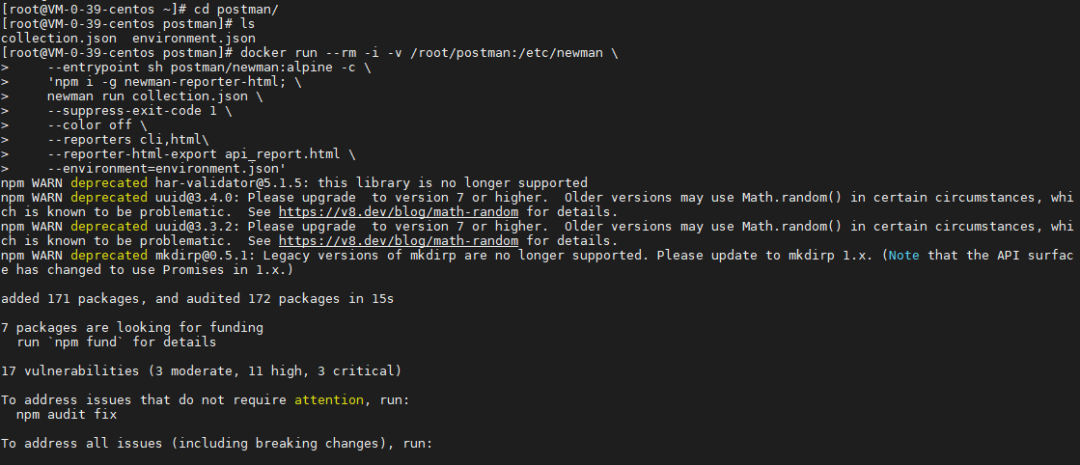
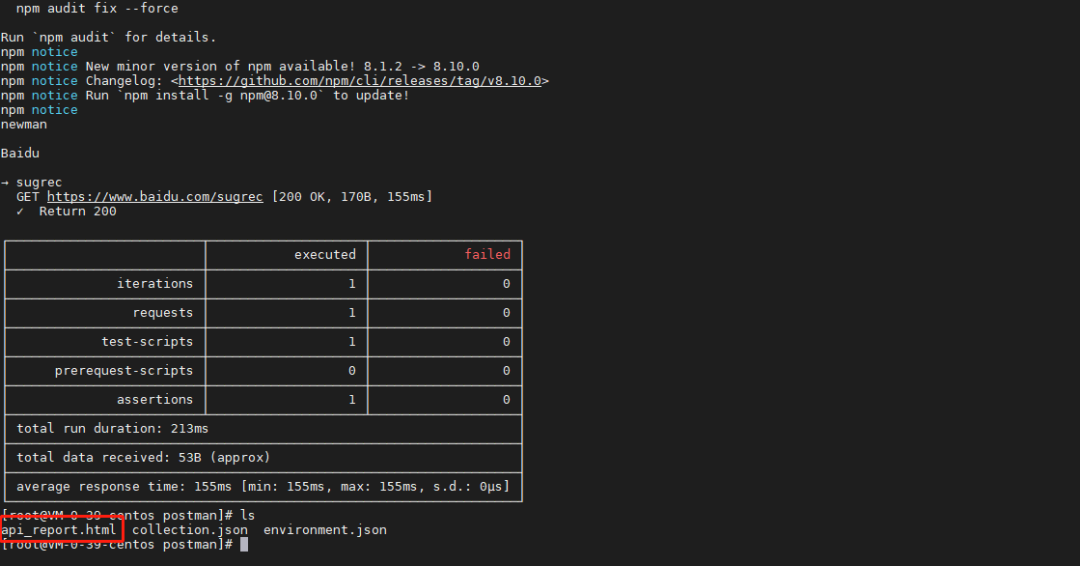
Execution result:
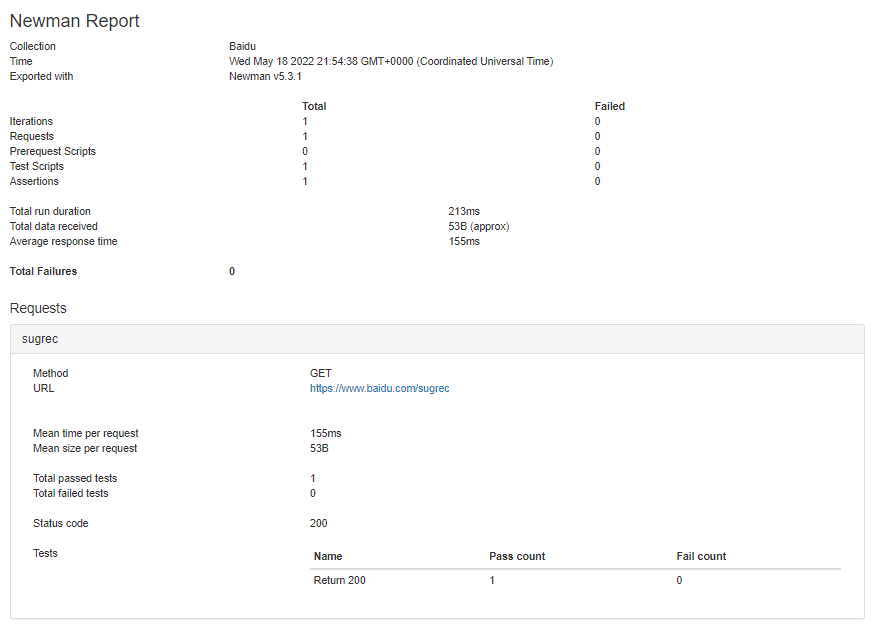
View HTML report:
Integrate with CI for Automated API Testing
Simply prepare collection.json and environment.json for your code project, place them in a directory within your repository, and add the above Docker command to your Jenkins or GitLab CI configuration.
For more resources, including video tutorials on software testing (interviews, API, automation, performance, etc.), please refer to the link provided.
