Docker Basic Management and Deployment
1. Docker Overview
(1) What is Docker?
Docker is an open-source application container engine, developed in Go and open-sourced under the Apache 2.0 license. Docker is an open-source tool for running applications in Linux containers, providing a lightweight "virtual machine". Docker's container technology makes it easy to create lightweight, portable, self-sufficient containers for any application on a single host.
Docker's logo is a blue whale carrying many containers. The whale can be seen as the host machine, and the containers represent isolated containers, each containing its own application.
Container engines: Docker, Containerd, Podman, Rocket
(2) Docker's Philosophy
Manage the lifecycle of application components—encapsulation, publishing, deployment, running—to achieve "encapsulate once, run anywhere" at the application component level. The application can be an application, a set of services, or even a complete operating system.
(3) Advantages of Containers
- Flexible: Even the most complex applications can be containerized.
- Lightweight: Containers share the host kernel.
- Interchangeable: Updates and upgrades can be deployed instantly.
- Portable: Build locally, deploy to the cloud, and run anywhere.
- Scalable: Increase and automatically distribute container replicas.
- Stackable: Services can be stacked vertically and instantly.
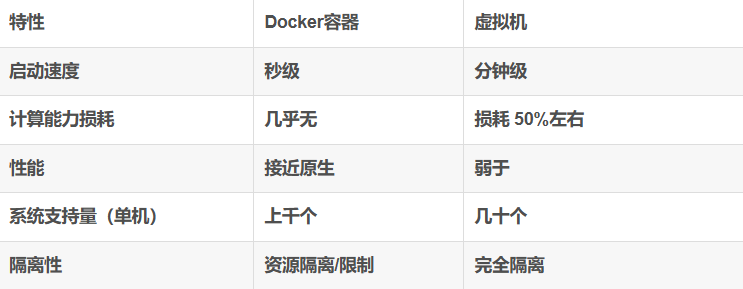
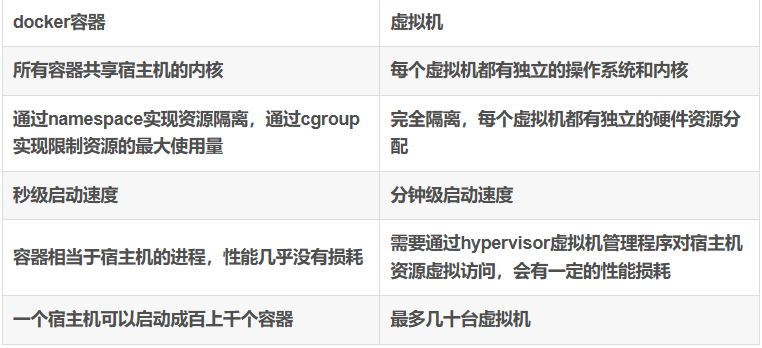
Containers share the host kernel with other containers, run as independent processes, and do not occupy memory for other executables. They are very lightweight. Virtual machines run a complete operating system and access host resources through a hypervisor, requiring more resources.
(4) Differences between Docker and Virtual Machines
(5) Two Kernel Technologies Supporting Containers
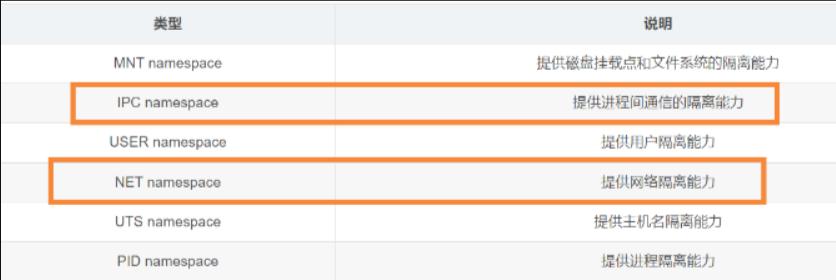
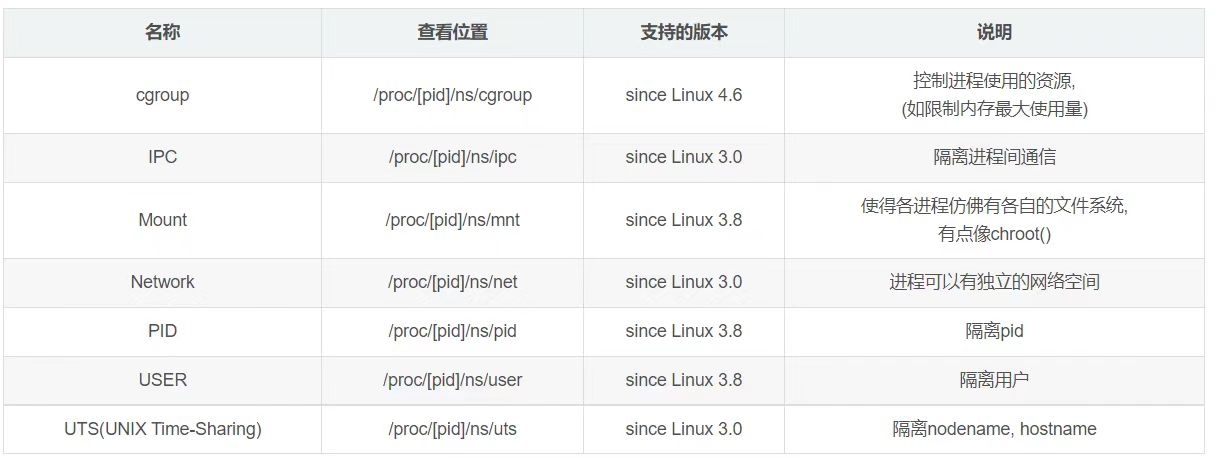
Docker is essentially a process on the host. It uses namespaces for resource isolation and cgroups for resource limitation. It uses copy-on-write technology for efficient file operations (similar to virtual disks, where allocating 500GB does not actually occupy 500GB of physical disk; data is only copied when modifications are needed).
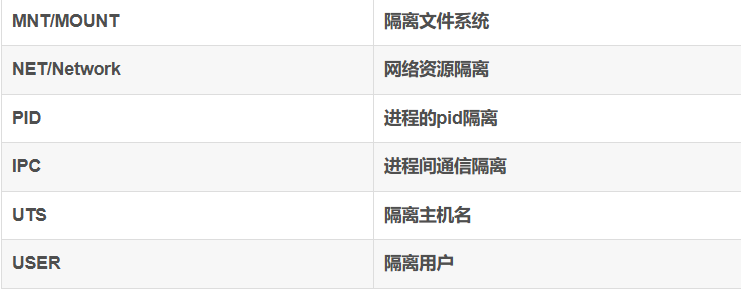
(6) Six Types of Namespaces
2. Docker Core Concepts
(1) Images
Docker images are the foundation for creating containers, similar to virtual machine snapshots. They can be understood as read-only templates for the Docker engine. Starting a container from an image creates an executable package containing everything needed to run the application: code, runtime, libraries, environment variables, and configuration files. A Docker image is also a compressed package, but it contains not only executables and deployment scripts but also a complete operating system. Most images are built based on some operating system, making it easy to create identical environments locally and remotely. This is the essence of Docker images.
(2) Containers
Containers are running instances created from images. They can be started, stopped, and deleted. Each container is isolated from others, ensuring platform security. A container can be thought of as a simplified Linux environment (including root user privileges, image space, user space, network space, etc.) along with the applications running in it.
(3) Registries
Docker registries are places to store images. After creating your own image, you can use the push command to upload it to a public or private registry. When you need that image on another machine, you can pull it from the registry.
Docker images, containers, logs, and other content are all stored by default in /var/lib/docker.
3. Installing Docker
Docker currently supports only 64-bit systems.
(1) System Initialization
[root@zx1 ~]# systemctl stop firewalld
[root@zx1 ~]# setenforce 0
[root@zx1 ~]#
(2) Import Alibaba Cloud Mirror Source
[root@zx1 ~]# cd /etc/yum.repos.d/
[root@zx1 yum.repos.d]# ls
local.repo  repo.bak
[root@zx1 yum.repos.d]# mv local.repo repo.bak
[root@zx1 yum.repos.d]# wget -O /etc/yum.repos.d/CentOS-Base.repo http://mirrors.aliyun.com/repo/Centos-7.repo
[root@zx1 yum.repos.d]# ls
CentOS-Base.repo  repo.bak
[root@zx1 yum.repos.d]#
(3) Install Dependencies
[root@zx1 yum.repos.d]# yum install -y yum-utils device-mapper-persistent-data lvm2
yum-utils: Provides theyum-config-managertool.device-mapper: A generic device mapping mechanism in the Linux kernel for logical volume management. It provides a highly modular kernel architecture for block device drivers used in storage resource management.- The device-mapper storage driver requires
device-mapper-persistent-dataandlvm2.
(4) Set Up Alibaba Cloud Docker Repository
[root@zx1 yum.repos.d]# yum-config-manager --add-repo https://mirrors.aliyun.com/docker-ce/linux/centos/docker-ce.repo
[root@zx1 yum.repos.d]# ls
CentOS-Base.repo  docker-ce.repo  repo.bak
[root@zx1 yum.repos.d]#
(5) Install Docker CE and Enable Auto-start
[root@zx1 yum.repos.d]# yum install -y docker-ce docker-ce-cli containerd.io
[root@zx1 yum.repos.d]# systemctl start docker.service
[root@zx1 yum.repos.d]# systemctl enable docker.service
Created symlink from /etc/systemd/system/multi-user.target.wants/docker.service to /usr/lib/systemd/system/docker.service.
[root@zx1 yum.repos.d]#
Installed Docker has two programs: Docker server (a service daemon managing all containers) and Docker client (a remote controller for the server). Usually, both run on the same machine.
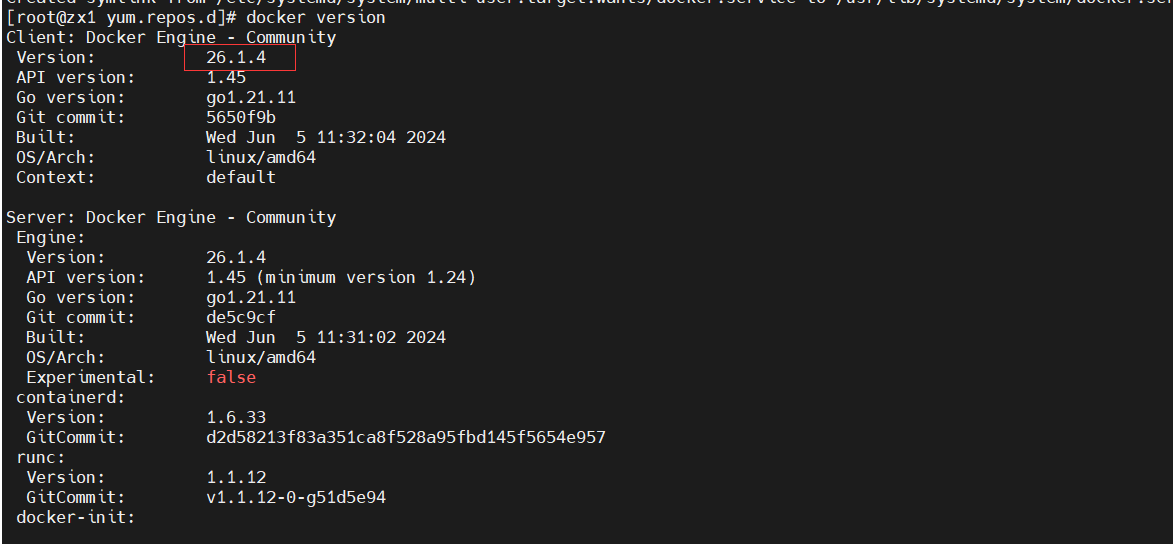
(6) Check Docker Version
docker version  # View Docker version
# Detailed Docker information
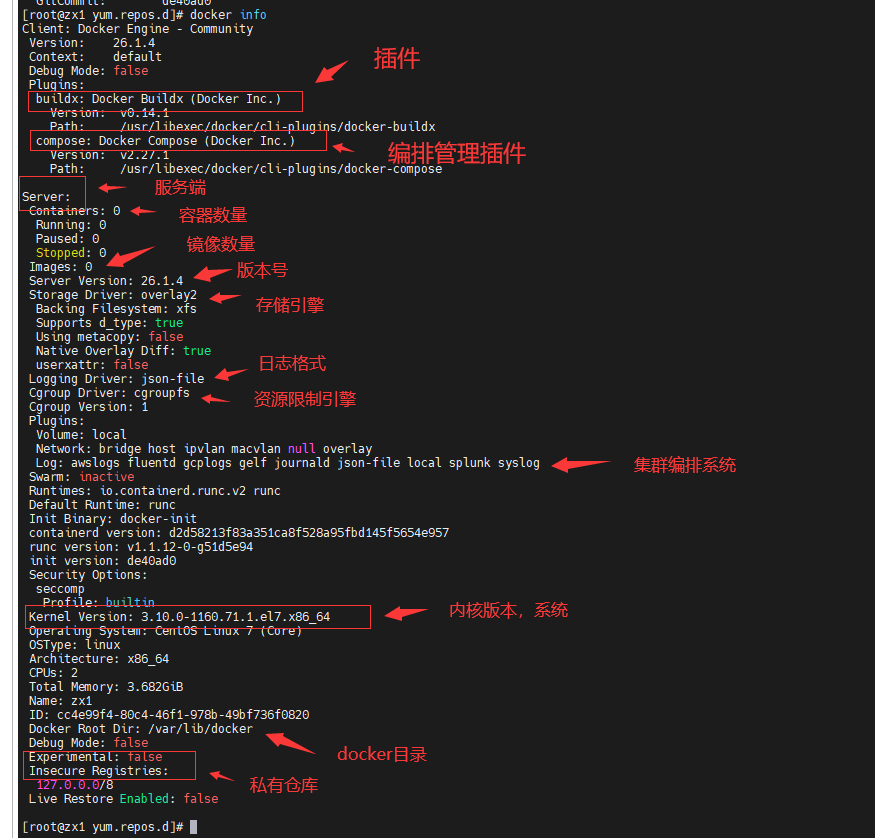
docker info
4. Docker Image Operations
(1) Image Acceleration
Access Alibaba Cloud's container image service for an accelerator URL. Configure it in Docker to speed up image puls.
(2) Search Images
docker search <keyword>
docker search nginx
(3) Pull Images
docker pull <repository>/<image>[:tag]
# If no tag is specified, the latest tag is used by default.
docker pull nginx
docker pull nginx:1.20
docker pull nginx:1.18
(4) List Local Images
docker images  # Equivalent to docker image ls

# Output columns: REPOSITORY, TAG, IMAGE ID, CREATED, SIZE
# docker images -q: Show only image IDs
(5) Image Storage Location
Images are stored in /var/lib/docker. The containers directory holds container information, image holds image information, and overlay2 holds the underlying image layer files.
(6) View Image File Information
cat /var/lib/docker/image/overlay2/repositories.json
(7) Inspect an Image
docker inspect <image_id>   # or <repository>:<tag>
docker inspect nginx:1.18
lowerdir is the image layer (read-only directories, rootfs). upperdir is the container layer (read-write, created when a container starts). MergedDir is the mount point for the container.
(8) Tag an Image
docker tag <source_image>[:tag] <target_image>[:tag]
docker tag nginx:latest nginx:1.21
docker tag nginx:latest xy101/nginx:1.21
Tags can be changed; the image ID remains the same.
(9) Delete Images
docker rmi <image>:<tag>           # Remove a specific tag
docker rmi <image_id>              # Remove the image entirely
docker rmi <image_id> -f           # Force removal

# Remove all images
docker rmi $(docker images -q)
(10) Save an Image to a File
docker save -o <output_path> <image>:<tag>   # Export image to file
docker save -o /opt/nginx-1.20.tar nginx:1.20
ls /opt
scp /opt/nginx-1.20.tar 20.0.0.20:/opt
(11) Load an Image from a File
docker load < <saved_file>
docker load -i <saved_file>
(12) Push an Image to a Registry
Default is Docker Hub. Login required.
docker login            # Enter credentials
docker tag nginx:1.20 <alias>
docker push <alias>
Example with Alibaba Cloud:
docker login --username=<username> registry.cn-hangzhou.aliyuncs.com
docker tag nginx:1.20 registry.cn-hangzhou.aliyuncs.com/<namespace>/<repo>:1.20
docker push registry.cn-hangzhou.aliyuncs.com/<namespace>/<repo>:1.20
5. Docker Container Operations
Container creation: loading an image into a container. Newly created containers are stopped by default.
docker create [options] <image>:<tag> [command]
# Common options:
# -i: interactive
# -t: allocate a pseudo-TTY
# -it: combine for interactive shell
# --name: specify container name

docker create -it nginx:latest /bin/bash
(1) List Containers
docker ps -a           # Show all containers
docker ps -a -q        # Show only container IDs
docker inspect <container_name/id>   # Detailed info
(2) Start Containers
docker start <container_id/name>
(3) Stop Containers
docker stop <container_id/name> [-t <timeout>]   # Send SIGTERM, default 10s timeout
docker kill <container_id/name>                  # Send SIGKILL (force stop)
Exit code 0 means normal exit, non-zero indicates abnormal exit.
(4) Delete Containers
docker rm [-f] <container_id/name> # Remove stopped container; -f forces removal of running containers
(5) Batch Remove Stopped Containers
docker rm $(docker ps -a -q)
(6) Batch Remove All Containers
docker rm $(docker ps -a -q) -f
(7) Create and Start Containers (docker run)
docker run [options] <image>:<tag> [command]
# Equivalent to create + start.
# -d: run in background (required, otherwise the shell hangs)
Note: The container exits when its main process (PID=1) finishes. Docker requires a foreground process to keep the container running.
(8) Enter a Running Container
docker exec -it <container_id/name> /bin/bash
# -i: keep STDIN open
# -t: allocate a pseudo-TTY

docker exec -it zx /bin/sh
ls
exit   # Container keeps running after exit
(9) Copy Files from Host to Container
docker cp <host_path> <container_name/id>:<container_path>
docker cp /etc/yum.repos.d/CentOS-Base.repo zx:/lib
(10) Copy Files from Container to Host
docker cp <container_name/id>:<container_path> <host_path>
docker cp zx:/lib/systemd /root/
(11) View Container Logs
docker logs <container_id/name> # View logs of the main process (PID=1)
(12) Export Container
docker export <container_id/name> > <output_file>
docker export -o <output_file> <container_id/name>
(13) Import Container as Image
docker import <container_file> -- <name>:<tag>
cat <container_file> | docker import - <name>:<tag>

# Example:
docker import nginx.tar -- nginx:xy101
cat nginx.tar | docker import - nginx:xy102
6. Summary
What is Docker? Docker is a container engine developed in Go, used to run applications in containers and to manage containers and images.
Differences between Docker and VMs
Linux 6 Namespaces (Resource Isolation)
Docker run startup process:
- Check if the image exists locally; if not, pull from registry.
- Mount a writable container layer on top of the read-only image layer.
- Assign a virtual interface and IP address from Docker bridge to the container.
- Start the container with either the image's default command or the command specified in
docker run. The container runs until its main process (PID=1) exits.
