Building a Serial Debug Assistant with Qt (Inspired by Ai-Thinker)
1. Project Overview
A serial debug assistant is a tool for serial communication testing. It can open, close, configure serial ports, read and write serial data, and perform other common serial communication operations. It is widely used in embedded system debugging, module testing, communication protocol analysis, etc.
The serial assistant typically provides a GUI interface, allowing users to conveniently and intuitively perform serial communication tests and debugging. Users can configure serial port parameters, open/close ports, and send/receive data via dropdown menus and buttons on the interface. It also supports hexadecimal display and sending, facilitating binary data debugging and testing.
This project designs and implements a high-fidelity imitation of the Ai-Thinker serial debug assistant.
2. Project UI Design
Actual UI in operation
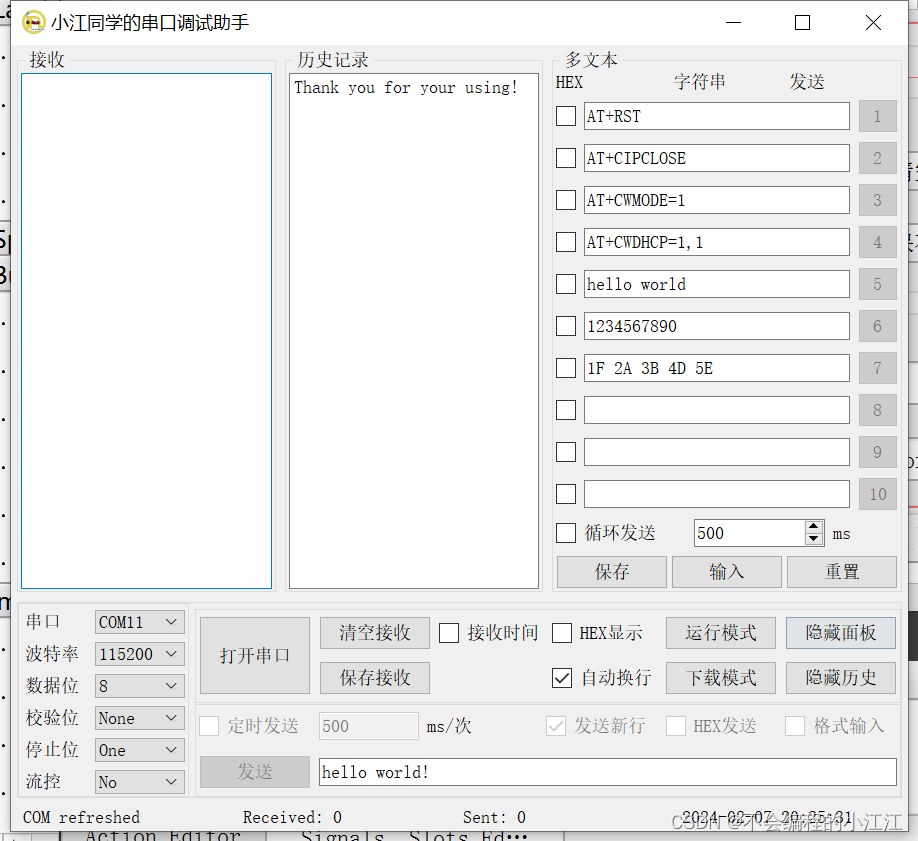
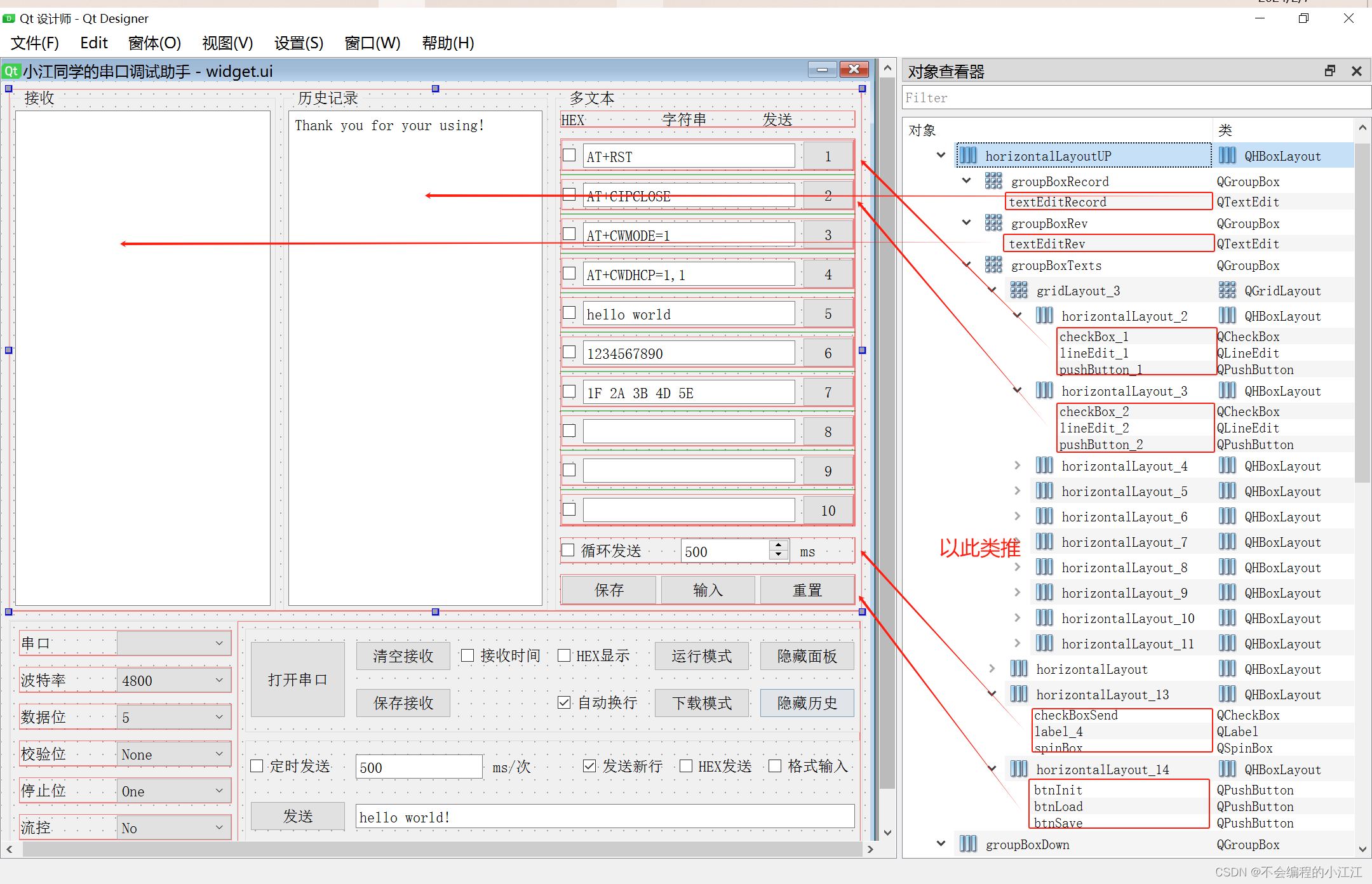
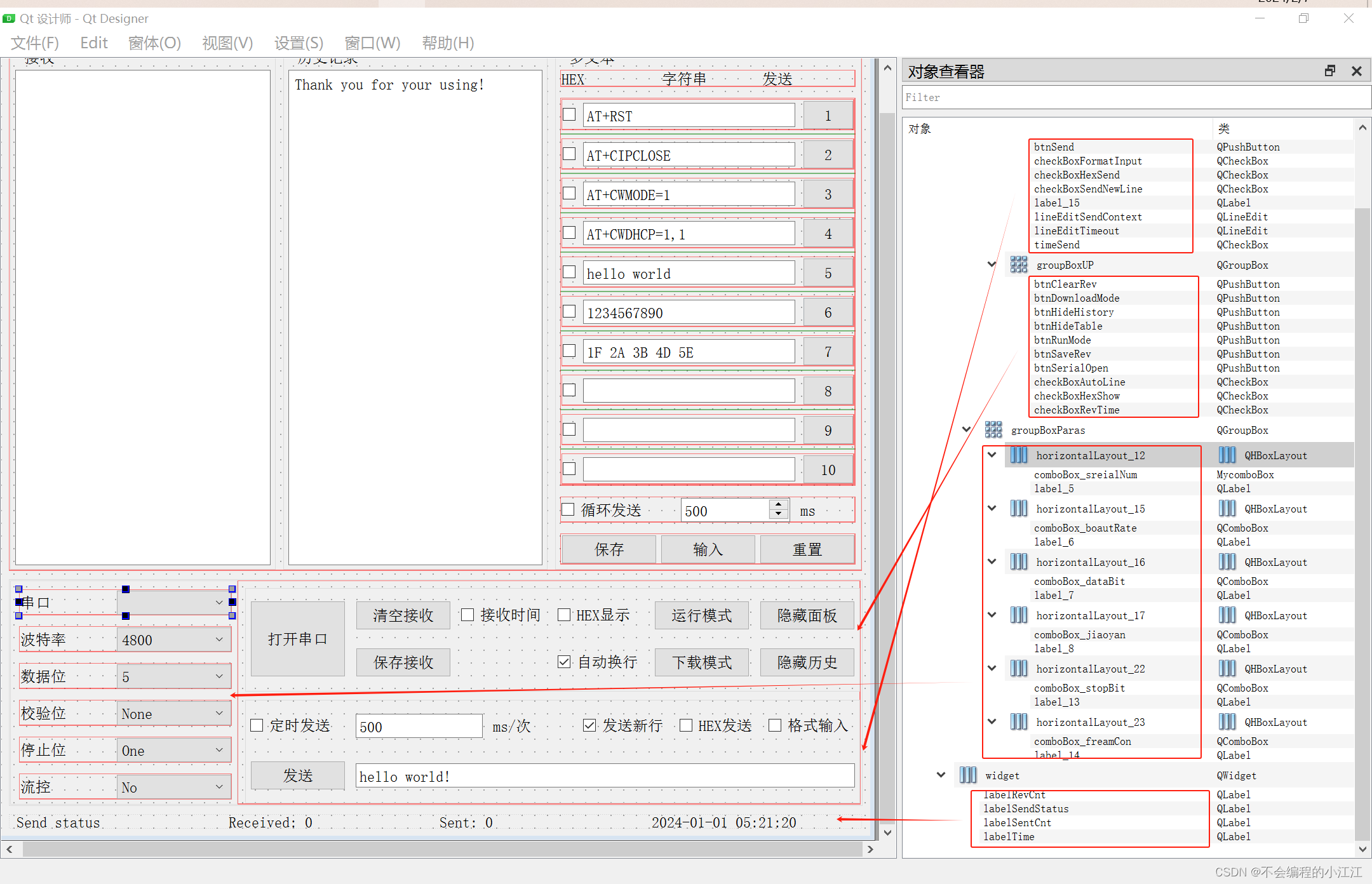
Overall layout: vertical layout. The top consists of three groupBoxes in a horizontal layout: receive area, history area, and multi-text area. The middle is divided into left and right parts: the left is for serial port parameter settings, and the right contains two groupBoxes in a vertical layout (top and bottom). The bottom has a status bar for displaying data. The layout fully mimics the Ai-Thinker serial debug assistant.
Note: When designing the layout, naming of controls is crucial for easier development and identification later.
Variable naming used in this article:
3. Core Serial Communication Code Development
3.1 QSerialPort Introduction and Example
QSerialPort is a class in the Qt framework for serial communication. It allows communication with serial devices such as sensors, microcontrollers, GPS receivers, etc. You can use this class to send and receive data and configure communication parameters to meet actual needs.
Common usages and methods:
1. Opening and closing serial port
bool QSerialPort::open(QIODevice::OpenMode mode)— Open port.void QSerialPort::close()— Close port.
2. Configuring serial parameters
setPortName(const QString &name)— Set port name.setBaudRate(qint32 baudRate)— Set baud rate.setDataBits(QSerialPort::DataBits dataBits)— Set data bits.setStopBits(QSerialPort::StopBits stopBits)— Set stop bits.setParity(QSerialPort::Parity parity)— Set parity.setFlowControl(QSerialPort::FlowControl flowControl)— Set flow control.
3. Reading and writing data
qint64 write(const char *data)— Write data to serial port.readAll()— Read all available serial data.read(qint64 maxSize)— Read data of specified size.waitForReadyRead(int msecs)— Wait for the serial port to be ready to read data.
4. Signals and slots
The QSerialPort class provides signals such as readyRead, which are emitted when new data arrives. You can connect these signals to slot functions to handle data.
5. Error handling
Use error() and errorString() methods to detect and retrieve errors during serial communication.
Example code demonstrating how to use QSerialPort to open a port, send and receive data:
#include <QApplication>
#include <QDebug>
#include <QSerialPort>
#include <QSerialPortInfo>

int main(int argc, char *argv[])
{
    QApplication app(argc, argv);

    // Create a QSerialPort object
    QSerialPort serialPort;

    // Configure serial port parameters
    serialPort.setPortName("COM1");
    serialPort.setBaudRate(QSerialPort::Baud9600);
    serialPort.setDataBits(QSerialPort::Data8);
    serialPort.setParity(QSerialPort::NoParity);
    serialPort.setStopBits(QSerialPort::OneStop);
    // serialPort.setFlowControl(QSerialPort::NoFlowControl);

    // Attempt to open the serial port
    if (serialPort.open(QIODevice::ReadWrite))
    {
        qDebug() << "Serial port opened successfully";

        QByteArray data = "hello world!";

        // Write data to serial port
        serialPort.write(data);

        /*********** Add other code and event handling logic here ***********/

        // Connect readyRead signal to slot
        QObject::connect(&serialPort, &QSerialPort::readyRead, [&]() {
            // Read all available serial data
            QByteArray receiveData = serialPort.readAll();
            qDebug() << "Received data: " << receiveData;
        });

        /*********** Add other code and event handling logic here ***********/

        serialPort.close();
    }
    else
    {
        qDebug() << "Failed to open serial port";
    }

    return app.exec();
}
In this example, we configure port parameters, open the port, send data, and set up a slot to handle incoming data. Finally, we run the event loop. Adjust code according to actual serial configuration and requirements.
3.2 Scanning System Serial Ports
Using QSerialPortInfo class to scan for available serial ports:
#include <QSerialPortInfo>
#include <QApplication>
#include <QDebug>

int main(int argc, char *argv[])
{
    QApplication app(argc, argv);

    // Get list of available serial ports
    QList<QSerialPortInfo> serialList = QSerialPortInfo::availablePorts();
    if (serialList.isEmpty())
    {
        qDebug() << "No serial ports found.";
    }
    else
    {
        qDebug() << "Available ports found:";
        for (QSerialPortInfo serialInfo : serialList)
        {
            qDebug() << "Port: " << serialInfo.portName();
            qDebug() << "Description: " << serialInfo.description();
            qDebug() << "Manufacturer: " << serialInfo.manufacturer();
            qDebug() << "System Location: " << serialInfo.systemLocation();
            qDebug() << "Vendor ID: " << serialInfo.vendorIdentifier();
            qDebug() << "Product ID: " << serialInfo.productIdentifier();
            qDebug() << "-------------------------";
        }
    }
    return app.exec();
}
This code prints information about available serial ports. The port name is mainly used for configuration.
Add scanned ports to a comboBox:
for (QSerialPortInfo serialInfo : serialList) {
    ui->comboPortName->addItem(serialInfo.portName());
}
Core scanning code:
// Detect available serial ports and add to comboBox
QList<QSerialPortInfo> serialList = QSerialPortInfo::availablePorts();
if (serialList.isEmpty())
{
    qDebug() << "No serial ports found.";
}
else
{
    for (QSerialPortInfo serialInfo : serialList)
    {
        ui->comboPortName->addItem(serialInfo.portName());
    }
}
3.3 Data Transmission and Reception
Sending data: Use the write() method. Returns number of bytes successfully sent.
// Send button slot
void Widget::on_btnSend_clicked()
{
    // Get data from line edit and convert to const char*
    QByteArray sendBytes = ui->lineEditSendContext->text().toLocal8Bit();
    const char* sendData = sendBytes.constData();
    int nwrite = serialPort->write(sendData);
    if (nwrite == -1) {
        ui->labelSendStatus->setText("Send error!");
    }
    else
    {
        qDebug() << "Send ok: " << sendData;
        /*********** Add other code here ***********/
    }
}
Receiving data: When new data arrives, the readyRead signal is emitted. Connect signal to slot:
In constructor:
connect(serialPort, &QSerialPort::readyRead, this, &Widget::onSerialDataReady);
Slot implementation:
void Widget::onSerialDataReady()
{
    QByteArray receivedData = serialPort->readAll();
    if (!receivedData.isEmpty())
    {
        ui->textEditReceive->append(QString::fromUtf8(receivedData));
        qDebug() << "Received: " << receivedData;
    }
}
3.4 Timed Transmission (Qt Timer)
Reference: Qt QTimer theoretical summary.
QTimer is a timer utility class. Create a QTimer, connect its timeout() signal to a slot, and call start(). It will emit timeout() at fixed intervals.
Example with CheckBox to start/stop timer:
timer = new QTimer(this);   // Instantiate timer

void Widget::on_timeSend_clicked(bool checked)
{
    if (checked)
    {
        timer->start(1000);   // Send every 1000 ms
    }
    else
    {
        timer->stop();
    }
}
Connect timeout to slot that calls send function:
connect(timer, &QTimer::timeout, [=](){
    on_btnSend_clicked();
});
3.5 HEX Display and Send
HEX Display
- Read text from text edit as
QString. - Convert
QStringtoQByteArrayusingtoUtf8(), then to hex usingtoHex(). - Convert hex
QByteArrayback toQStringfor display.
void Widget::on_checkBoxHexShow_clicked(bool checked)
{
    if (checked)
    {
        QString plainText = ui->textEditReceive->toPlainText();
        QByteArray hexBytes = plainText.toUtf8().toHex();
        QString hexStr = QString::fromUtf8(hexBytes);
        QString formatted;
        for (int i = 0; i < hexStr.size(); i += 2)
        {
            formatted += hexStr.mid(i, 2) + " ";
        }
        ui->textEditReceive->setText(formatted.toUpper());
    }
    else
    {
        QString hexText = ui->textEditReceive->toPlainText();
        hexText.remove(' ');
        QByteArray hexBytes = QByteArray::fromHex(hexText.toUtf8());
        ui->textEditReceive->setText(QString::fromUtf8(hexBytes));
    }
}
Note: QString cannot be directly converted to HEX, so convert to QByteArray first.
HEX Send
- Read text from line edit as
QString, convert toQByteArray. - Validate even length and hexadecimal characters.
- Convert to hex and send.
if (ui->checkBoxHexSend->isChecked())   // HEX send
{
    QString text = ui->lineEditSendContext->text();
    QByteArray data = text.toLocal8Bit();

    // Check even length
    if (data.size() % 2 != 0)
    {
        ui->labelSendStatus->setText("Error input");
        return;
    }

    // Check each char is hex digit
    for (char c : data)
    {
        if (!isxdigit(c))
        {
            ui->labelSendStatus->setText("Error input");
            return;
        }
    }

    if (ui->checkBoxSendNewLine->isChecked())
        data.append("\r\n");

    QByteArray sendArray = QByteArray::fromHex(data);
    nwrite = serialPort->write(sendArray);
}
4. Optimization of Serial Debug Assistant
4.1 Real-time Serial Port Scanning
To detect newly inserted serial ports when clicking the combo box, we promote the combo box to a custom class MyComboBox that overrides mousePressEvent to emit a refresh signal.
MyComboBox header:
class MyComboBox : public QComboBox
{
    Q_OBJECT
public:
    MyComboBox(QWidget *parent);
protected:
    void mousePressEvent(QMouseEvent *e) override;
signals:
    void refresh();
};
Implementation:
MyComboBox::MyComboBox(QWidget *parent) : QComboBox(parent) {}

void MyComboBox::mousePressEvent(QMouseEvent *e)
{
    if (e->button() == Qt::LeftButton)
        emit refresh();
    QComboBox::mousePressEvent(e);
}
Note: Promote the combo box in UI to MyComboBox.
Connect refresh signal to slot:
connect(ui->comboPortName, &MyComboBox::refresh, this, &Widget::refreshSerialNames);

void Widget::refreshSerialNames()
{
    ui->comboPortName->clear();
    QList<QSerialPortInfo> serialList = QSerialPortInfo::availablePorts();
    for (QSerialPortInfo info : serialList)
    {
        ui->comboPortName->addItem(info.portName());
    }
    ui->labelSendStatus->setText("COM refreshed");
}
4.2 Getting System Time
Use QDateTime, QDate, QTime classes.
QDateTime dateTime = QDateTime::currentDateTime();
QDate date = dateTime.date();
QTime time = dateTime.time();

int year = date.year();
int month = date.month();
int day = date.day();
int hour = time.hour();
int minute = time.minute();
int second = time.second();

QString timeString = QString("%1-%2-%3 %4:%5:%6")
                         .arg(year, 2, 10, QChar('0'))
                         .arg(month, 2, 10, QChar('0'))
                         .arg(day, 2, 10, QChar('0'))
                         .arg(hour, 2, 10, QChar('0'))
                         .arg(minute, 2, 10, QChar('0'))
                         .arg(second, 2, 10, QChar('0'));
4.3 Button Array and Unified Slot
Right side has 10 buttons; instead of 10 separate slots, use a button list and a single slot.
Private member:
QList<QPushButton*> btns;
In constructor:
for (int i = 1; i <= 10; i++)
{
    QString btnName = QString("pushButton_%1").arg(i);
    QPushButton *btn = findChild<QPushButton*>(btnName);
    if (btn)
    {
        btns.append(btn);
        btn->setProperty("btnID", i);
        connect(btn, &QPushButton::clicked, this, &Widget::onCommandBtnsClicked);
    }
}
Slot implementation:
void Widget::onCommandBtnsClicked()
{
    QPushButton *btn = qobject_cast<QPushButton*>(sender());
    if (!btn) return;

    int num = btn->property("btnID").toInt();
    QString lineEditName = QString("lineEdit_%1").arg(num);
    QString checkBoxName = QString("checkBox_%1").arg(num);

    QLineEdit *lineEdit = findChild<QLineEdit*>(lineEditName);
    QCheckBox *checkBox = findChild<QCheckBox*>(checkBoxName);

    if (lineEdit && !lineEdit->text().isEmpty())
    {
        ui->lineEditSendContext->setText(lineEdit->text());
    }
    if (checkBox)
    {
        ui->checkBoxHexSend->setChecked(checkBox->isChecked());
    }

    on_btnSend_clicked();
}
4.4 Cyclic Sending (Timer and Multi-threading)
Using Timer
Create a timer for cyclic sending that iterates through the buttons.
buttonCycleTimer = new QTimer(this);
connect(buttonCycleTimer, &QTimer::timeout, this, &Widget::btnCycleHandler);

int buttonIndex = 0;

void Widget::btnCycleHandler()
{
    if (buttonIndex < btns.size())
    {
        btns[buttonIndex]->click();
        buttonIndex++;
    }
    else
    {
        buttonIndex = 0;
    }
}

void Widget::on_checkBoxCycleSend_clicked(bool checked)
{
    if (checked)
    {
        ui->spinBoxCycle->setEnabled(false);
        int interval = ui->spinBoxCycle->text().toInt();
        buttonCycleTimer->start(interval);
    }
    else
    {
        buttonCycleTimer->stop();
        ui->spinBoxCycle->setEnabled(true);
    }
}
Using Multi-threading
For non-blocking cyclic sends, use a separate thread.
Define custom thread:
class CycleThread : public QThread
{
    Q_OBJECT
public:
    CycleThread(QObject *parent = nullptr) : QThread(parent) {}
signals:
    void timeout();
protected:
    void run() override
    {
        while (true)
        {
            msleep(1000);
            emit timeout();
        }
    }
};
In main widget:
CycleThread *cycleThread = new CycleThread(this);
connect(cycleThread, &CycleThread::timeout, this, &Widget::btnCycleHandler);

void Widget::on_checkBoxCycleSend_clicked(bool checked)
{
    if (checked)
    {
        ui->spinBoxCycle->setEnabled(false);
        cycleThread->start();
    }
    else
    {
        cycleThread->terminate();
        ui->spinBoxCycle->setEnabled(true);
    }
}
4.5 Reset, Save, and Load
Reset
Clear all line edits and uncheck checkboxes.
void Widget::on_btnReset_clicked()
{
    QMessageBox msgBox;
    msgBox.setWindowTitle("Warning");
    msgBox.setText("Reset is irreversible. Confirm?");
    msgBox.setIcon(QMessageBox::Question);
    msgBox.addButton("Yes", QMessageBox::YesRole);
    msgBox.addButton("No", QMessageBox::NoRole);
    int ret = msgBox.exec();
    if (ret == 0) // Yes
    {
        for (auto *le : lineEdits) le->clear();
        for (auto *cb : checkBoxes) cb->setChecked(false);
    }
}
Save
Save data to a text file.
void Widget::on_btnSave_clicked()
{
    QString fileName = QFileDialog::getSaveFileName(this, "Save File",
        "E:/qtProject/SaveList.txt",
        "Text files (*.txt)");
    QFile file(fileName);
    if (!file.open(QIODevice::WriteOnly | QIODevice::Text))
        return;

    QTextStream out(&file);
    for (int i = 0; i < checkBoxes.size(); i++)
    {
        out << checkBoxes[i]->isChecked() << "," << lineEdits[i]->text() << "\n";
    }
    file.close();
}
Load
Load data from a text file.
void Widget::on_btnLoad_clicked()
{
    QString fileName = QFileDialog::getOpenFileName(this, "Open File",
        "E:/qtProject/SaveList.txt",
        "Text files (*.txt)");
    if (fileName.isEmpty()) return;

    QFile file(fileName);
    if (!file.open(QIODevice::ReadOnly | QIODevice::Text))
        return;

    QTextStream in(&file);
    int i = 0;
    while (!in.atEnd() && i < lineEdits.size())
    {
        QString line = in.readLine();
        QStringList parts = line.split(",");
        if (parts.size() == 2)
        {
            checkBoxes[i]->setChecked(parts[0].toInt());
            lineEdits[i]->setText(parts[1]);
            i++;
        }
    }
    file.close();
}
