File Handling and I/O Operations in Java
Understanding Files
In a narrow sense, a file refers to files and directories (often called folders) on a hard disk.
In a broader sense, a file represents hardware resources in a computer. Operating systems abstract many hardware devices and software resources as files and manage them in a file-like manner.
File Paths
Every file on a hard disk has a specific "path" that describes its location.

In early operating systems, directories were separated using /. Later, when Microsoft released DOS, they temporarily changed it to \. Due to public backlash, they eventually supported both. Today, \ is the default, but using / works without any issues.
There are two styles for representing paths:
-
Absolute path: Starts with a drive letter, such as
C:orD:.
-
Relative path: Based on the current working directory.

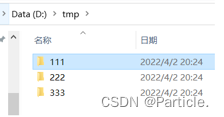
Assume the goal is to locate the directory 111.
- Absolute path:
d:/tmp/111 - Relative path if the working directory is
d:/:./tmp/111 - Relative path if the working directory is
d:/tmp:./111 - Relative path if the working directory is
d:/tmp/222:../111(..refers to the parent directory) - Relative path if the working directory is
d:/tmp/222/bbb:../../111
Working with Files in Java
Java provides two main areas of file manipulation:
- File system operations (creating, deleting, renaming files, etc.)
- File content operations (reading and writing)
The standard library includes the File class for these purposes.
File Class
Attributes
| Modifier and Type | Attribute | Description |
|---|---|---|
| static String | pathSeparator | System-dependent path separator, represented as a String (/ or \) |
| static char | pathSeparatorChar | System-dependent path separator, represented as a char |
Constructors
| Signature | Description |
|---|---|
| File(File parent, String child) | Creates a new File instance from a parenet directory and a childd file path. |
| File(String pathname) | Creates a new File instance from a path string, which can be absolute or relative. |
| File(String parent, String child) | Creates a new File instance from a parent path string and a child file path. |
Methods
| Modifier and Return Type | Method Signature | Description |
|---|---|---|
| String | getName() | Returns the pure file name. |
| String | getParent() | Returns the parent directory path. |
| String | getPath() | Returns the file path. |
| String | getAbsolutePath() | Returns the absolute path. |
| String | getCanonicalPath() | Returns the canonical (simplified) absolute path. |
| boolean | exists() | Checks if the abstract pathname actually exists on the file system. |
| boolean | isDirectory() | Checks if the pathname represents a directory. |
| boolean | isFile() | Checks if the pathname represents a regular file. |
| boolean | createNewFile() | Atomically creates a new, empty file. Returns true if the file was created. |
| boolean | delete() | Deletes the file or directory. Returns true on success. |
| void | deleteOnExit() | Marks the file for deletion when the JVM terminates. |
| String[] | list() | Returns an array of names of files and directories in the directory. |
| File[] | listFiles() | Returns an array of File objects representing files and directories. |
| boolean | mkdir() | Creates the directory. |
| boolean | mkdirs() | Creates the directory, including any necessary parent directories. |
| boolean | renameTo(File dest) | Renames/moves the file. |
| boolean | canRead() | Tests if the application can read the file. |
| boolean | canWrite() | Tests if the application can modify the file. |
Examples
Example 1: Observing path-related methods
import java.io.File;
import java.io.IOException;

public class PathInspector {
    public static void main(String[] args) throws IOException {
        File entry = new File("./sample.txt"); // The file does not need to actually exist
        System.out.println("Name: " + entry.getName());
        System.out.println("Parent: " + entry.getParent());
        System.out.println("Path: " + entry.getPath());
        System.out.println("Absolute: " + entry.getAbsolutePath());
        System.out.println("Canonical: " + entry.getCanonicalPath());
    }
}
Example 2: Creating a regular file
import java.io.File;
import java.io.IOException;

public class FileGenerator {
    public static void main(String[] args) throws IOException {
        File document = new File("./sample.txt");
        document.createNewFile();
        System.out.println("Exists: " + document.exists());
        System.out.println("Is File: " + document.isFile());
        System.out.println("Is Directory: " + document.isDirectory());
    }
}
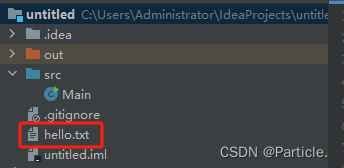
Example 3: Deleting a regular file
import java.io.File;

public class FileEraser {
    public static void main(String[] args) {
        File document = new File("./sample.txt");
        document.delete();
    }
}
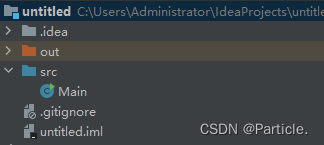
Example 4: Using deleteOnExit for temporary files
The deleteOnExit method is used for temporary files; the file is automatically deleted when the program exits.
import java.io.File;
import java.io.IOException;

public class TempFileHandler {
    public static void main(String[] args) throws IOException {
        File tempData = new File("cache-data.txt");
        System.out.println("Before create: " + tempData.exists());
        System.out.println("Creation success: " + tempData.createNewFile());
        System.out.println("After create: " + tempData.exists());
        tempData.deleteOnExit();
        System.out.println("After marking for deletion: " + tempData.exists());
        // The file still exists until the JVM shuts down
    }
}
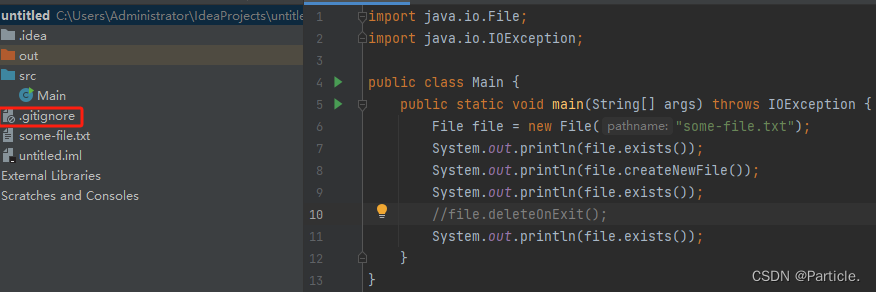
The file is indeed created, and deleteOnExit will remove it, but only after the program terminates.
Example 5: Creating directories
import java.io.File;

public class DirectoryBuilder {
    public static void main(String[] args) {
        File singleFolder = new File("./newDir");
        File nestedFolders = new File("./project/module/src/");

        singleFolder.mkdir();   // Creates a single directory
        nestedFolders.mkdirs(); // Creates all necessary parent directories
    }
}
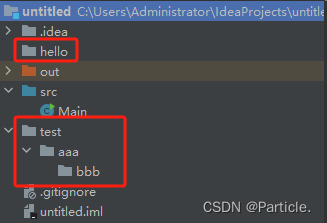
Example 6: Renaming files
import java.io.File;

public class FileRenamer {
    public static void main(String[] args) {
        File originalDir = new File("./oldName");
        File newDir = new File("./newName");
        originalDir.renameTo(newDir);
    }
}
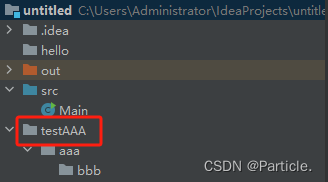
Reading and Writing File Content – Stream Objects
A "stream" is an illustrative metaphor. Imagine needing 100 ml of water; you could take it all at once, 50 ml at a time, or 10 ml at a time. Reading and writing files works similarly. Stream objects allow flexible, granular operations.
Java's standard library provides two main categories of streams:
-
Byte Streams (for binary data)
InputStream(abstract class) –FileInputStreamOutputStream(abstract class) –FileOutputStream
-
Character Streams (for text data)
Reader(abstract class) –FileReaderWriter(abstract class) –FileWriter
The core usage pattern for these classes involves four operations:
- Open the file (via constructor)
- Read from the file (
readmethod) – forInputStream/Reader - Write to the file (
writemethod) – forOutputStream/Writer - Close the file (
closemethod)
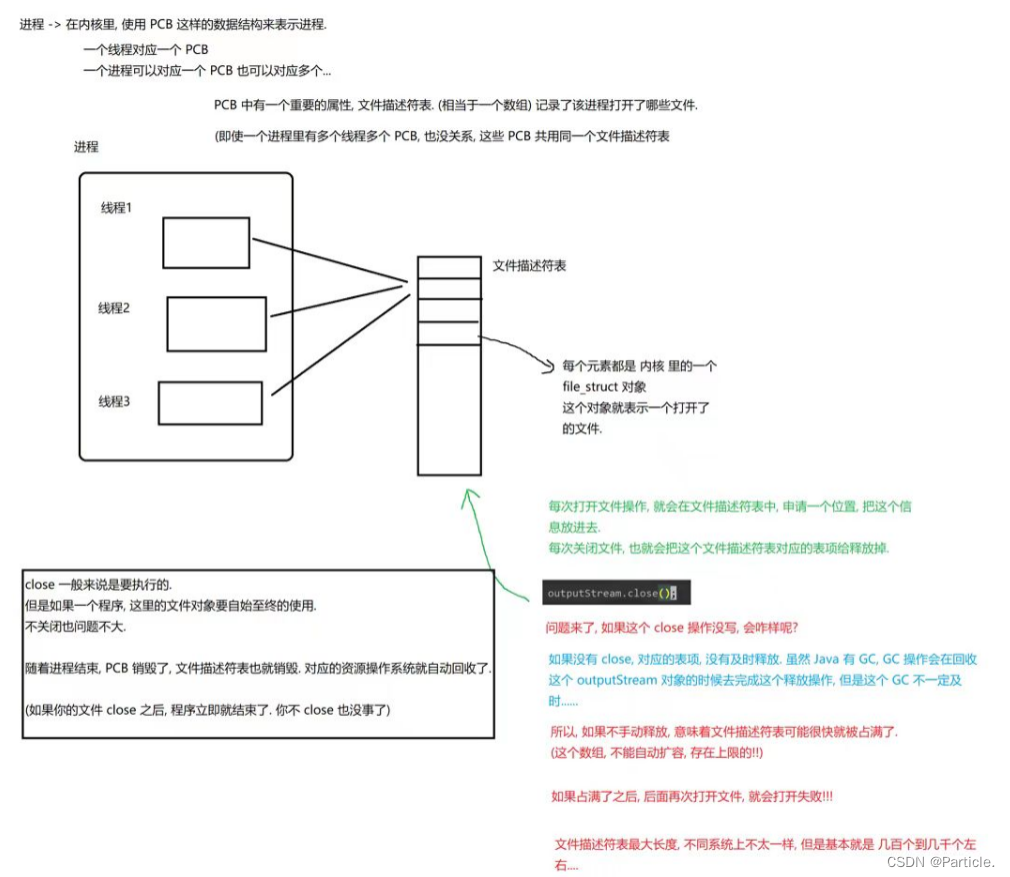
Why close? Each time a file is opened, the process's kernel data structure (PCB) allocates a file descriptor table entry. This table has a limit. If files are opened and not closed, the table can fill up, preventing further file access.
Byte Streams
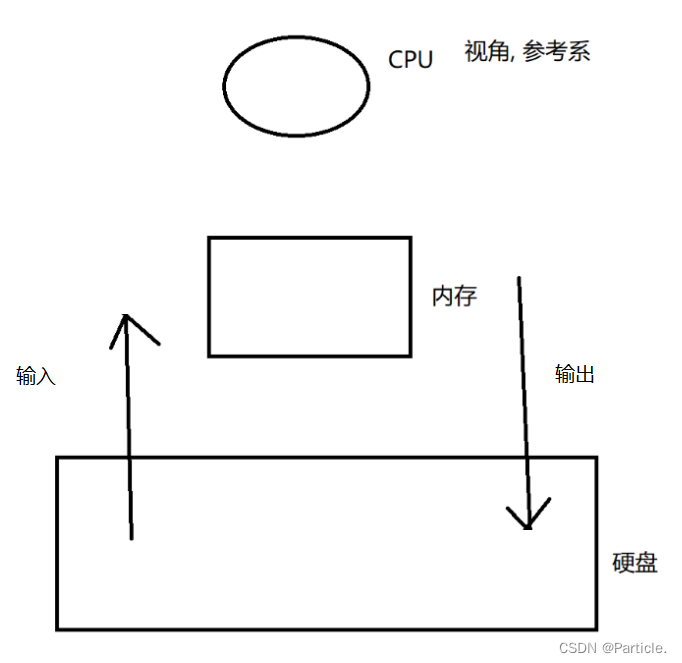
InputStream (Reading bytes from hard disk into memory)
Reading a text file:

Three overloaded read methods:
read(): Reads a single byte.read(byte[] b): Reads bytes into a byte array (the parameter acts as an output parameter).read(byte[] b, int off, int len): Reads up tolenbytes into a portion of the array.
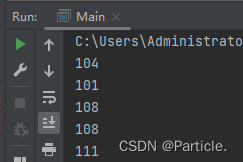
Example with read() (no arguments):
import java.io.FileInputStream;
import java.io.IOException;
import java.io.InputStream;

public class ByteFileReader {
    public static void main(String[] args) throws IOException {
        // 'data.txt' on D: drive contains the string "hello"
        InputStream dataStream = new FileInputStream("d:/data.txt");

        while (true) {
            int singleByte = dataStream.read();
            if (singleByte == -1) {
                break; // End of file reached
            }
            System.out.println(singleByte);
        }
        dataStream.close();
    }
}
The return value of read is an int, not byte. While a byte value ranges from 0 to 255, the special value -1 is used to signal the end of the file.
Example with read(byte[] b) (array version):
import java.io.FileInputStream;
import java.io.IOException;
import java.io.InputStream;

public class BufferedFileReader {
    public static void main(String[] args) throws IOException {
        InputStream dataStream = new FileInputStream("d:/data.txt");

        while (true) {
            byte[] buffer = new byte[1024];
            int bytesRead = dataStream.read(buffer);
            System.out.println("Bytes read this cycle: " + bytesRead);
            if (bytesRead == -1) {
                break;
            }
            // The read data is now in the buffer.
            // Further processing, e.g., printing in hex:
            // for (int i = 0; i < bytesRead; i++) {
            //     System.out.printf("%x\n", buffer[i]);
            // }
        }
        dataStream.close();
    }
}
I/O operations, which access the hard disk, are relatively time-consuming. Frequent I/O adds overhead. Reading a large chunk (e.g., 1024 bytes) at once reduces the number of read operations, improving overall program efficiency compared to reading one byte at a time.
Using byte streams for a text file is functional but not as convenient as using character streams.
OutputStream (Writing bytes from memory to hard disk)
OutputStream is an abstract class. The FileOutputStream implementation is used for writing to files.
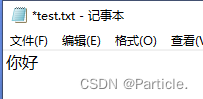
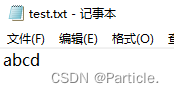
import java.io.*;

public class ByteFileWriter {
    public static void main(String[] args) throws IOException {
        try (OutputStream outputStream = new FileOutputStream("d:/data.txt")) {
            outputStream.write(97);  // 'a'
            outputStream.write(98);  // 'b'
            outputStream.write(99);  // 'c'
            outputStream.write(100); // 'd'
        } // The stream is automatically closed here
    }
}
This code snippet uses the try-with-resources statement. When the try block finishes, the close method is automatically called because FileOutputStream implements the Closeable interface.
Character Streams
Reader
import java.io.FileReader;
import java.io.IOException;
import java.io.Reader;

public class TextFileReader {
    public static void main(String[] args) {
        try (Reader textReader = new FileReader("d:/data.txt")) {
            while (true) {
                int ch = textReader.read();
                if (ch == -1) {
                    break;
                }
                System.out.print((char) ch);
            }
        } catch (IOException e) {
            e.printStackTrace();
        }
    }
}
Writer
import java.io.FileWriter;
import java.io.IOException;
import java.io.Writer;

public class TextFileWriter {
    public static void main(String[] args) {
        try (Writer textWriter = new FileWriter("d:/data.txt")) {
            textWriter.write("hello world");
            textWriter.flush(); // Manually flush the buffer to disk
        } catch (IOException e) {
            e.printStackTrace();
        }
    }
}
After a write operation, data might reside in an internal buffer and not yet on the physical disk. Calling flush() forces the buffer to be written. Alternatively, the close method also triggers a flush.
Using Scanner with Files
The Scanner class can also read from files. System.in is itself an input stream.

import java.io.FileInputStream;
import java.io.IOException;
import java.io.InputStream;
import java.util.Scanner;

public class FileScanner {
    public static void main(String[] args) {
        try (InputStream fileStream = new FileInputStream("d:/data.txt");
             Scanner fileScanner = new Scanner(fileStream)) {

            while (fileScanner.hasNext()) {
                String word = fileScanner.next();
                System.out.println(word);
            }
        } catch (IOException e) {
            e.printStackTrace();
        }
    }
}
Comprehensive Examples
Search and Conditional Delete
This program scans a specified directory, finds all regular files (not directories) whose names contain a user-specified string, and prompts the user about deleting each one.
import java.io.File;
import java.util.Scanner;

public class SelectiveFileDeleter {
    private static Scanner inputCollector = new Scanner(System.in);

    public static void main(String[] args) {
        System.out.println("Enter the directory path to search: ");
        String basePath = inputCollector.next();

        File rootDir = new File(basePath);
        if (!rootDir.isDirectory()) {
            System.out.println("Error: The provided path is not a valid directory.");
            return;
        }

        System.out.println("Enter the filename substring to search for deletion: ");
        String pattern = inputCollector.next();

        traverseAndDelete(rootDir, pattern);
    }

    private static void traverseAndDelete(File rootDir, String pattern) {
        System.out.println("[Scanning] " + rootDir.getAbsolutePath());
        File[] contents = rootDir.listFiles();
        if (contents == null) {
            return; // Directory is empty or inaccessible
        }

        for (File item : contents) {
            if (item.isDirectory()) {
                traverseAndDelete(item, pattern);
            } else {
                if (item.getName().contains(pattern)) {
                    System.out.println("Delete " + item.getAbsolutePath() + "? (y/n)");
                    String confirmation = inputCollector.next();
                    if (confirmation.equalsIgnoreCase("y")) {
                        boolean deleted = item.delete();
                        System.out.println("Deleted: " + deleted);
                    } else {
                        System.out.println("Skipped.");
                    }
                }
            }
        }
    }
}
File Copy
This program copies a file from a source path to a destination path.
import java.io.*;
import java.util.Scanner;

public class FileDuplicator {
    public static void main(String[] args) {
        Scanner pathScanner = new Scanner(System.in);
        System.out.println("Enter the source file path: ");
        String srcPath = pathScanner.next();
        System.out.println("Enter the destination file path: ");
        String destPath = pathScanner.next();

        File source = new File(srcPath);
        if (!source.isFile()) {
            System.out.println("Error: The source must be an existing file.");
            return;
        }

        File destination = new File(destPath);
        if (destination.isFile()) {
            System.out.println("Error: The destination file already exists.");
            return;
        }

        // Perform the copy using try-with-resources for both input and output streams
        try (InputStream inStream = new FileInputStream(source);
             OutputStream outStream = new FileOutputStream(destination)) {

            while (true) {
                int data = inStream.read();
                if (data == -1) {
                    break;
                }
                outStream.write(data);
            }
            System.out.println("File copy complete.");
        } catch (IOException e) {
            e.printStackTrace();
        }
    }
}
Note: The try-with-resources statement can manage multiple resources separated by semicolons.
