Essential Linux Commands for Directory and File Operations
Directory Operations
Displaying and Navigating Directories
pwd: Show the current working directory.clear: Clear the terminal screen.cd ~: Navigate to the current user's home directory.cd /: Navigate to the root directory.cd -: Return to the previous directory visited.cd ..: Move up one directory level.Ctrl+R: Search through command history by typing any character from a command.
Viewing Directory Contents
ll: List detailed contents of the current directory.ls: List basic contents of the current directory.
Creating Directories
mkdir aaa: Create a directory namedaaain the current directory.mkdir /usr/aaa: Create a directory namedaaain the specified/usrdirectory.
Searching for Files and Directories
find / -name 'b': Search the root directory (including subidrectories) for files and directories named exactlyb.find / -name 'b*': Search the root directory (including subdirectories) for files and directories starting withb.
Renaming and Moving Directories
mv original_directory new_name: Rename a directory; e.g.,mv test001 test.mv /aaa /bb: Move theaaadirectory from the root to thebbdirectory.mv bbbb usr/bbb: Move thebbbbdirectory from the current directory tousr, renaming it tobbb.mv bbb usr/aaa: Move thebbbdirectory from the current directory tousr, renaming it toaaa.
Copying Directories
cp /usr/tmp/aaa /usr: Copy theaaadirectory from/usr/tmpto/usr.
Deleting Directories
rm -r /bbb: Delete the/bbbdirectory with confirmation for each file.rm -rf /bbb: Force delete the/bbbdirectory and all its subdirectories without prompts.
File Operations
Deleting Files
rm -r a.java: Deletea.javain the current directory with confirmation.rm -rf a.java: Force deletea.javain the current directory.rm -rf ./a*: Force delete all files starting withain the current directory.rm -rf ./*: Force delete all files in the current directory (use with caution).rm –f *.txt: Force delete all files with.txtextension.
Creating Files
touch test: Create an empty file namedtest.
Editing Files with vi/vim
Modes in vim
- Command Mode: Default mode when vim starts; press
Escmultiple times to return to this mode from any other mode. - Insert Mode: Press
ito enter; allows text input; pressEscto return to Command Mode. - Ex Mode: Press
:to enter; cursor moves to the bottom for saving, quitting, or executing commands.
Common Commands in Command Mode
i: Insert text before the cursor.o: Insert a new line below the current line.dd: Delete the entire current line.yy: Copy the current line to the buffer.n+yy: Copynlines to the buffer.p: Paste buffer contents after the cursor.u: Undo the last operation.r: Replace the current character./: Search for a keyword.
Common Commands in Ex Mode
:w: Save changes.:q: Quit vim.:q!: Force quit without saving changes.:x: Save and quit, equivalent to:wq.:set number: Display line numbers.:! system_command: Execute a system command and show results.:sh: Switch to the command line; useCtrl+Dto return to vim.
Output and Viewing Commands
echo: Display input content; e.g.,echo "liuyazhuang" >> liuyazhuang.txtappends text to a file.cat: Display file contents or merge multiple files; e.g.,cat test.txtshows content,cat test.txt test2.txt > readme.txtmerges files.head: Display the first few lines of a file (default 10); e.g.,head -n 20 filenameshows first 20 lines.tail: Display the last few lines of a file (default 10); e.g.,tail -f filenamecontinuously displays new content (useful for logs).more: Page through file content downward only; e.g.,ls -al | more.less: Page through file content with up/down navigation; e.g.,ls -al | less.
Hard Links and Soft Links
Creating Soft Links
ln -s test.txt link_1: Create a soft link namedlink_1pointing totest.txt.ln -sf test.txt link_2: Force replace an existing soft link withlink_2.ln -sv /opt/test1 /opt/test2: Create a soft link for a directory.
Creating Hard Links
ln real.txt link_2: Create a hard link namedlink_2; modifications affect the source file.
Compression and Decompression
Using tar
tar -cvf start.tar a.java b.java: Create a tar archivestart.tarfrom specified files.tar -cvf start.tar ./*: Archive all files in the current directory.tar -zcvf start.tar.gz a.java b.java: Create a gzipped tar archive.tar -zcvf start.tar.gz ./*: Gzip archive all files in the current directory.tar -xvf start.tar: Extractstart.tarto the current directory.tar -xvf start.tar -C /usr/local: Extract to a specified directory.tar -zxvf start.tar.gz: Extract a gzipped tar archive to the current directory.tar -zxvf start.tar.gz -C /usr/local: Extract to a specified directory.
Using zip and unzip
zip lib.zip tomcat.jar: Compress a single file intolib.zip.zip -r lib.zip lib/: Compress a directory intolib.zip.zip -r lib.zip tomcat-embed.jar xml-aps.jar: Compress multiple files intolib.zip.unzip file1.zip: Extract a zip archive.unzip -d /usr/app/ test.zip: Extracttest.zipto a specified directory.
Search Commands
Using grep
ps -ef | grep sshd: Find processes related to SSH service.ps -ef | grep sshd | grep -v grep: Exclude the grep process itself.ps -ef | grep sshd -c: Count the number of specified processes.
Using find
find . -name "*.log" -ls: Find.logfiles in the current directory with details.find /root/ -perm 600: Find files in/root/with permission 600.find . -type f -name "*.log": Find regular files ending with.log.find . -type d | sort: List and sort all directories in the current directory.find . -size +100M: Find files larger than 100MB.find . -name *liuyazhuang*: Find files containing "liuyazhuang" in their name.find / -perm 777: Find all files with permission 777.
Using locate
locate keyword: Quickly search for files or folders by keyword.
Yum Commands
yum install iptables-services: Install a package.yum list: List all installed packages.yum search package_name: Search for a package in repositories.yum update package_name.rpm: Update all installed RPM packages.yum update package_name: Update a specific package.yum remove package_name: Remove a package.yum clean all: Clear all cached packages and headers.
System Services
service iptables status: Check the status of iptables service.service iptables start: Start the service.service iptables stop: Stop the service.service iptables restart: Restart the service.chkconfig iptables off: Disable service auto-start on boot.chkconfig iptables on: Enable service auto-start on boot.
User Management
su - username: Switch user and change directory.exit: Log out of the current account.- Note: Using
suwithout a username switches to root, but it is not recommended for security reasons. which: Find the location of a command; e.g.,which lsoutputs/bin/ls./etc/passwd: File storing user information./usr/bin/passwd: Program for changing user passwords.
Other Commands
Process Management
ps -ef: View all running processes.kill pidorkill -9 pid: Terminate a process (force kill with-9).
Network Commands
ifconfigorifconfig | more: View network interface information.netstat -an: View current system ports.netstat -an | grep 8080: Search for a specific port.setup: Configure network settings.service network restart: Restart network services.chkconfig iptables off: Disable firewall auto-start.iptables -L: List firewall rules.iptables -F: Flush firewall rules.service iptables stop: Stop the firewall service.
File Permissions
chmod 777: Change file permissions to read, write, and execute for all.
System Information
Ctrl + L: Clear the terminal screen.du -lh: Check disk usage of directories.free: View system memory usage.df -lh: Check filesystem partition usage.date: View or set the system time; e.g.,date +%Y--%m--%dfor formatted output.date -s: Set the system time.uptime: Check system uptime.
Network Connectivity
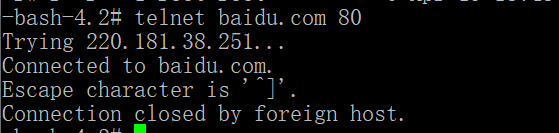
ping www.baidu.com: Test connectivity to a host.telnet baidu.com 80: Check if a remote port is open; "Connected" indicates success.